Category: Blog

Your blog category

  • Canonical Tags and Indexing: Every Search Console Canonical Status Explained

    Google Search Console · Canonicalization guide

    What is a non-canonical URL? It is a URL that Google treats as a duplicate of another page and therefore does not index: Google picked a different URL from the same group as the canonical, the one version it indexes and ranks.

    Key takeaways
    • A canonical URL is the one Google chose as the most representative of a set of duplicate pages. Every other URL in that set is non-canonical and is not indexed on its own.
    • Your canonical tag is a hint, not a rule. Google weighs it against redirects and links (both strong signals) and sitemap inclusion (a weak signal), and picks its own winner when they disagree.
    • Four Page indexing statuses are about canonicals: Alternate page with proper canonical tag, Duplicate without user-selected canonical, Duplicate, Google chose different canonical than user and Page with redirect. Only the third one usually needs work.
    • “Submitted URL not selected as canonical” is a legacy name from the old Index Coverage report; it is no longer in Google’s current list of statuses.
    • URL Inspection shows the two values that settle every canonical question: User-declared canonical and Google-selected canonical.
    • Never use robots.txt, noindex or the URL removal tool to pick a canonical; Google advises against all three.
    How this was checked. Every rule on this page was re-read on 17 October 2026 in Google’s own documentation: the Page indexing report help page, What is canonicalization (last updated 20 August 2026), How to specify a canonical URL (10 July 2026), Fix canonicalization issues (21 August 2026), Redirects and Google Search (14 April 2026) and the URL Inspection tool help page. Search Console help pages show no update date; they were current on the day we checked.
    Short answer

    When several URLs show the same content, Google groups them and indexes one: the canonical. The others are non-canonical URLs. They still exist and can still be crawled, but they don’t get their own place in the index.

    That is usually fine. It only becomes a problem when Google picks a URL you didn’t want, or folds a unique page into someone else’s group. The fix is always the same: make every signal — canonical tag, redirects, internal links and sitemap — name the same URL.

    What is a non-canonical URL?

    A non-canonical URL is any URL in a group of duplicates that Google did not choose as the main version. Google defines the canonical as the URL of a page that Google chose as the most representative from a set of duplicate pages. Everything else in that set is non-canonical.

    Duplicates arise more often than people think. One article can be reachable as http:// and https://, with and without www, with a trailing slash, with tracking parameters such as ?utm_source=, as a printer version or through a category path. To Google these are separate URLs with the same content. It indexes one, and Search Console lists the others under a non-canonical status.

    A non-canonical URL is not an error by itself. Google’s own help page says that having a page marked duplicate or alternate is usually a good thing: it means Google found the copy and folded it into the right page.

    How does Google choose the canonical URL?

    Google picks the canonical from the signals you send and the signals it finds on its own. You can state a preference, but Google calls that preference a hint, not a rule. The documentation ranks the signals you control like this:

    Signal How you send it Strength (per Google) Typical mistake
    Permanent redirect 301 or 308 from the duplicate to the canonical Strong Using a 302 for a permanent move
    rel=”canonical” link element <link rel=”canonical” href=”…”> in the head Strong Template copies one canonical onto every page
    rel=”canonical” HTTP header Link: <URL>; rel=”canonical” Strong (same annotation) Sending a header and a link element that disagree
    Sitemap inclusion Listing the URL in your XML sitemap Weak Listing parameter or redirecting URLs

    Google adds that these methods stack: a redirect plus a canonical tag plus a clean sitemap is more convincing than any one of them. Google also prefers HTTPS over HTTP and pages that are part of a hreflang cluster, and it looks at internal links and content quality.

    When the signals conflict, Google chooses. Its troubleshooting page lists the usual reasons it overrides you: quality of the content or technical signals, such as language variants without hreflang, a CMS or plugin writing the wrong canonical, servers that return identical soft-404 pages, hacked pages, syndicated copies and copycat sites. One hard rule: if the canonical you declare is not similar to the page it sits on, Google won’t ever choose that URL.

    Which Search Console statuses are about canonicals?

    Four reasons in the Page indexing report describe a non-canonical URL. Two more often appear next to them because they interfere with canonical selection. The names below are the ones in Google’s current list.

    Status in Search Console What it means Action needed? Full guide
    Alternate page with proper canonical tag This URL points to another page as canonical and Google agreed; the canonical is indexed No, unless a unique page is listed Alternate page with proper canonical tag
    Duplicate without user-selected canonical Google found duplicates, no canonical was declared, so Google picked one Only if Google picked the wrong one Duplicate without user-selected canonical
    Duplicate, Google chose different canonical than user You declared a canonical; Google thinks another URL is a better one Yes, if you want your URL indexed Google chose different canonical than user
    Page with redirect A non-canonical URL that redirects elsewhere; only the target is indexed No, unless the redirect is a mistake Page with redirect
    URL marked ‘noindex’ (shown as Excluded by ‘noindex’ tag) The page asks not to be indexed Yes, if the page should rank Excluded by noindex tag
    URL blocked by robots.txt Google may not crawl the page, so it cannot read its canonical tag either Yes, if the page should rank Blocked by robots.txt
    About “Submitted URL not selected as canonical”
    You will still see this phrase in older guides, audit tools and forum threads. It comes from Search Console’s old Index Coverage report and is not in Google’s current list of statuses. The situation it described — a URL in your sitemap that Google did not pick — now shows up as Duplicate, Google chose different canonical than user or Duplicate without user-selected canonical.

    If your page is missing for a reason that is not in this table, such as Crawled — currently not indexed, it is not a canonical problem. Start with why Google isn’t indexing your site or crawled vs. discovered.

    How do you read user-declared vs Google-selected canonical?

    Open the URL in Search Console’s URL Inspection tool and expand Page indexing. Two lines answer the canonical question:

    • User-declared canonical — the canonical your page states. Google’s help page is blunt: there is no guarantee Google will choose it, but it is taken into consideration.
    • Google-selected canonical — the URL Google actually treats as the main version when it found similar pages on your site.

    Read them as a pair. Same URL on both lines: you and Google agree. Different URLs: you have a Google chose different canonical case. No user-declared canonical: Google decided alone. Two practical limits: the live test cannot predict which canonical Google will select, and the indexed values can be a few hours out of date.

    SAME URL

    You and Google agree

    Means: the canonical setup works. Nothing to do.

    DIFFERENT URL

    Google overruled you

    Means: your other signals point elsewhere, or the pages differ more than you think.

    To check many pages at once instead of one by one, see how to check if a page is indexed.

    How do you fix a non-canonical URL?

    First decide whether there is anything to fix. A non-canonical URL needs work only when the URL you want in Google is the one that lost. Then work through these cases in order:

    1. The page is a genuine duplicate. Leave it, or 301-redirect it to the canonical if visitors don’t need it. This is the normal outcome.
    2. Your preferred URL lost to a variant (http, www, slash, parameter). Redirect the variant to your preferred URL in one hop, make the canonical tag on the preferred URL self-referencing, link internally only to that URL and list only that URL in the sitemap.
    3. A unique page was folded into another page. Check its canonical tag: a theme or plugin that points every page to the homepage or to page 1 of the blog is the classic culprit. Fix the tag, then make the content clearly distinct if two pages really are near-identical.
    4. Two of your pages compete for one topic. Merge them into one strong page and 301-redirect the other. Fighting Google’s choice with tags alone rarely works when the content overlaps.
    Our take
    Don’t hammer “Request indexing” hoping Google flips its choice. Fix the conflicting signals, request indexing once, and wait: Google says a page can stay in its old duplicate cluster for up to two weeks after a fix.

    What does “non-canonical page in sitemap” mean?

    It is an audit-tool warning, not a Search Console status: your XML sitemap lists a URL that points its canonical tag at a different URL. Google’s rule is that all pages listed in a sitemap are suggested as canonicals, so listing a non-canonical URL sends two contradictory signals at once.

    The fix is to list only the URL you prefer. Google’s sitemap guidance says to choose the preferred URL and include that instead of every URL that leads to the same content. WordPress SEO plugins do this automatically for normal posts; the warning usually points to manually added URLs, redirected pages or pages whose canonical was set by hand. If Google can’t read the sitemap at all, that is a different problem: see sitemap could not be read.

    How do redirects, noindex and X-Robots-Tag affect canonicals?

    They are separate tools, and mixing them is the fastest way to confuse Google.

    • Redirects. Permanent redirects (301, 308, an instant meta refresh) tell Google the target should be canonical. Temporary ones (302, 303, 307) do not. The redirecting URL itself ends up as Page with redirect, which is normal.
    • noindex. Google doesn’t recommend noindex to steer canonical selection within one site. A page with both noindex and a canonical to another page sends mixed instructions; use the canonical alone.
    • robots.txt. Don’t use it for canonicalization. A blocked URL can’t be crawled, so Google never sees its canonical tag and may still index the bare URL as Indexed, though blocked by robots.txt.
    • X-Robots-Tag and the Link header. For PDFs and other non-HTML files you can send both rules as HTTP headers. X-Robots-Tag carries indexing rules such as noindex; the canonical goes in a Link header with an absolute URL:
    Link: <https://www.example.com/downloads/white-paper.pdf>; rel="canonical"

    Pick either the header or the HTML link element for a page, not both: Google says using both at the same time is more error-prone. And never use the URL removal tool to hide duplicates: it hides all versions of a URL from Search, including the one you want. What the tool is actually for is in how to remove a URL from Google.

    How do canonical tags work with hreflang and language versions?

    Each language version should be its own canonical, linked to its siblings with hreflang. Google asks you to specify a canonical page in the same language, or the best possible substitute language. Pointing the Dutch version’s canonical at the English page tells Google the Dutch page is a duplicate, and it drops out of Dutch results.

    This site is an example: our English guide to Google’s canonical choice and its Dutch counterpart each have a self-referencing canonical and point to each other with hreflang (checked in the page source on 17 October 2026). Google also notes that alternate-language pages are not detected by Search Console as “alternate” pages, so don’t expect to find them under Alternate page with proper canonical tag.

    FAQ

    What is a non-canonical URL?

    A URL that Google considers a duplicate of another page and does not index on its own. Google picked a different URL from the same group of duplicates as the canonical.

    Is a non-canonical URL bad for SEO?

    Usually not. The content still ranks through the canonical URL. It only hurts when the wrong URL wins, or when a unique page is treated as a duplicate.

    How do I fix a non-canonical URL?

    Make every signal name the same URL: a self-referencing canonical tag on the preferred page, a 301 from the variants, internal links to the preferred URL and only that URL in the sitemap. Then request indexing once and wait up to two weeks.

    Is a canonical tag a directive?

    No. Google calls a canonical preference a hint, not a rule. It is a strong signal, but Google can override it when redirects, links or content point to another URL.

    What is the difference between a user-declared and a Google-selected canonical?

    The user-declared canonical is the one your page states; the Google-selected canonical is the one Google actually uses. URL Inspection in Search Console shows both side by side.

    Should every page have a self-referencing canonical?

    Yes, Google recommends it for pages you want indexed. It removes guesswork when the same page is reachable through parameters or other variants.

    Can I use noindex instead of a canonical tag?

    Google doesn’t recommend it within one site. Noindex removes the page from the index; a canonical consolidates its signals into the main version. Use the canonical for duplicates.

    Is “Submitted URL not selected as canonical” still a Search Console status?

    No. It was a name in the old Index Coverage report. The current Page indexing report shows the same situation as “Duplicate, Google chose different canonical than user” or “Duplicate without user-selected canonical”.
    iP
    IndexUrePoint is an independent guide to getting your pages found and indexed — Google, Bing, and AI search. We test tools ourselves and say plainly when something doesn’t work. Spotted an error? Tell us via the contact page; we’ll fix it and note the date.

  • Search Console Indexing Report Missing Data: What Happened and What to Do

    Search Console Indexing Report Missing Data: What Happened and What to Do

    News · Search Console · 30 September 2026

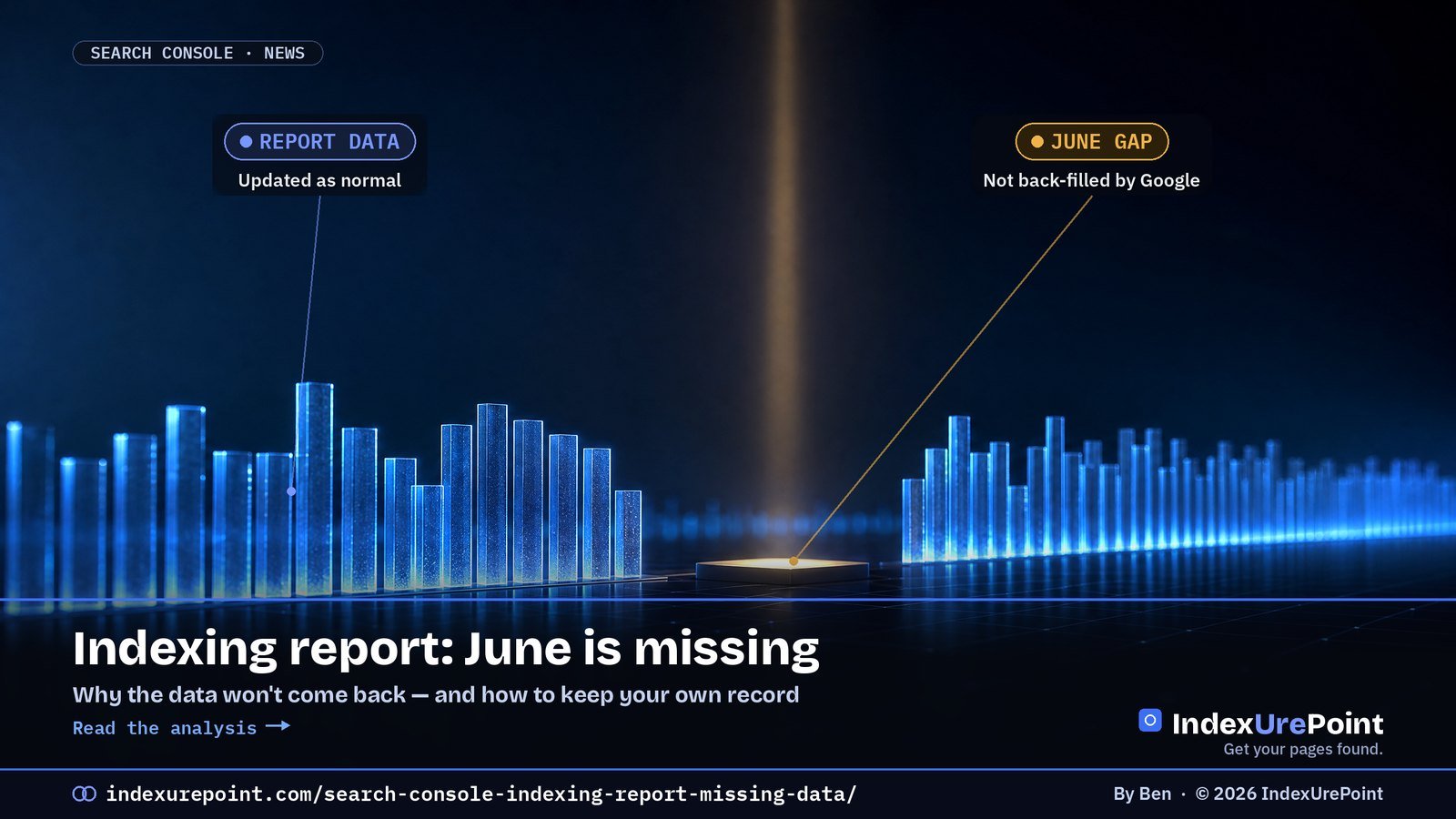
    If your Search Console page indexing report has a hole in it for June 2026, nothing is wrong with your site, and the data is not coming back. Google says it doesn’t back-fill indexing data. My take: stop treating that report as your only record of what is indexed, and start keeping your own.

    Key takeaways
    • In June 2026 the page indexing report stopped updating: it stayed frozen on data from 11 June for almost three weeks and caught up on 3 July, showing data through 29 June (ALM Corp, citing Search Engine Land).
    • On 11 September site owners noticed that part of the June data had disappeared. Google’s John Mueller said there simply is no data for the period the report was delayed (Search Engine Roundtable).
    • The gap is in the report, not in Google’s index. Your pages were not removed because the chart has a flat or empty stretch.
    • The fix is on your side: export the report regularly and keep a simple log of which URLs are indexed.

    What happened to the page indexing report?

    The page indexing report is the one most of us use to see which URLs Google has indexed and why others were left out. In June 2026 it stopped moving. According to Search Engine Land’s coverage, as summarised by ALM Corp, the report stayed on data from 11 June for about three weeks. It updated on the morning of 3 July and showed figures up to 29 June. Google had not publicly explained the cause at that time.

    For anyone fixing an indexing problem in that window, that was a miserable three weeks: you could change a noindex tag, repair a redirect or resubmit a sitemap and the report could not show whether it worked.

    The second part of the story came on 11 September. Site owners, including Dan Lauer on Bluesky, noticed that a chunk of June data that had been visible hours earlier was gone. Barry Schwartz reported it on Search Engine Roundtable. John Mueller’s answer was that the gap most likely comes from the time in June when the data was delayed: the report was not updated for that period, so there is nothing to show. Google’s position, in his words, is “We don’t back-fill indexing data.”

    ~3 weeksthe report was frozen on 11 June data before updating on 3 July — ALM Corp
    29 Junelatest date shown when the report caught up on 3 July
    0back-filled days: Google says it doesn’t back-fill indexing data — Search Engine Roundtable

    Does a gap in the report mean my pages were deindexed?

    No. A missing stretch in the chart tells you Google did not record report data for those days. It does not tell you pages were dropped from the index. The two things live in different systems: the index serves search results, while the report is a reporting layer on top of it.

    What can actually hurt is the confusion. If you compare today’s indexed count with a June number that no longer exists, you may think you lost pages when you didn’t. Compare against dates that have data, and check individual URLs with the URL Inspection tool when the answer matters.

    How do I keep my own indexing record?

    The lesson from June is simple: a report you don’t control can be late, frozen or incomplete. A small log you keep yourself costs ten minutes a month.

    • Export the report on a schedule. The page indexing report has an export option. Save the indexed and not-indexed lists with the date in the file name once a month, or after every big change.
    • Keep a list of the URLs that matter. New articles, money pages and anything you fixed. Next to each, note the date you published it, the date you requested indexing and the status you saw.
    • Inspect key URLs directly. URL Inspection shows the last crawl date and whether the page is on Google, independent of the aggregate chart.
    • Read your server logs. Googlebot requests in your hosting logs tell you when a page was actually fetched, whatever Search Console shows. The crawl frequency guide explains what normal looks like.
    • Add a second engine. Bing Webmaster Tools gives you a separate view of what is discovered and indexed, and supports IndexNow.

    How much should I trust indexing reports right now?

    Trust them for direction, not for a single day’s number. Search Console had reporting delays earlier this year and another reporting glitch in early September, so a one-day dip or a flat week is weak evidence on its own. Stronger evidence is a steady change over several weeks, or a change you can confirm with a direct URL inspection.

    This also matters after the September 2026 spam update. If you want to know whether the update moved pages into “Crawled – currently not indexed”, you need a clean before-and-after. Your own export from before 24 September is worth more than a chart with gaps. If pages are stuck, start with why Google isn’t indexing your site and the difference between crawled and discovered. Realistic timeframes are in how long Google takes to index a page.

    Our take
    The report is a convenience, not a guarantee. Sites that keep their own monthly export and a short list of key URLs can answer “was this page indexed in June?” without Google’s help. The ones that rely only on the chart can’t, and that gap is now permanent.

    FAQ

    Why is June 2026 missing from my Search Console page indexing report?

    The report was delayed in June 2026 and Google says it does not back-fill indexing data, so there is no data for the period when it wasn’t updated.

    Will the missing Search Console indexing data come back?

    Not according to Google. John Mueller said the page indexing report wasn’t updated during the delay and that Google doesn’t back-fill indexing data.

    Does missing indexing data mean my pages were removed from Google?

    No. The gap is in the report, not in the index. Use the URL Inspection tool to check whether a specific page is on Google.

    How can I track which of my pages are indexed?

    Export the page indexing report regularly, keep a dated list of your important URLs with their status, inspect key pages with URL Inspection, and check Googlebot requests in your server logs.

    When was the page indexing report fixed after the June delay?

    It updated on the morning of 3 July 2026 and showed data through 29 June, after being frozen on 11 June data for about three weeks.

    B
    Ben runs IndexUrePoint and manages several websites in Google Search Console and Bing Webmaster Tools, including this one. Spotted an error? Tell us via the contact page; we’ll fix it and note the date.

  • Image Metadata SEO: How to Get Credit for Your Images in Google

    Image Metadata SEO: How to Get Credit for Your Images in Google

    Image SEO · Google Images · 2026 guide

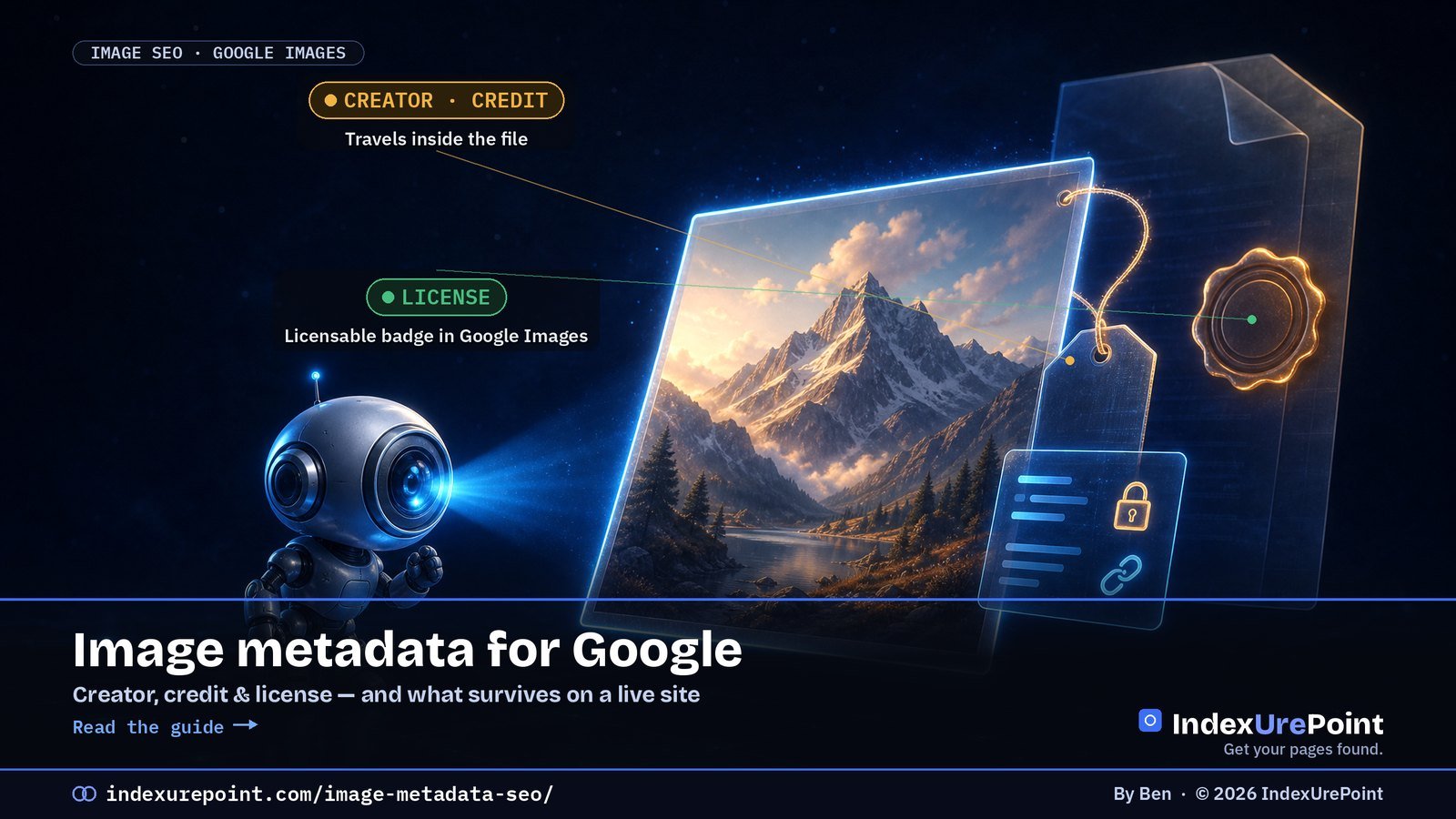
    Google reads who made an image, who to credit and where its license lives from two places: IPTC photo metadata inside the file and ImageObject structured data on the page. Add a license URL and your images become eligible for the Licensable badge in Google Images. We added this to every image on this site, and learned that your host can quietly strip half of it.

    Key takeaways
    • Google extracts six IPTC fields: Creator, Credit Line, Copyright Notice, Web Statement of Rights, Licensor URL and Digital Source Type (Google).
    • For the Licensable badge you need a Web Statement of Rights (IPTC) or a license property (structured data). If the two conflict, structured data wins.
    • Metadata doesn’t replace alt text: Google’s image guidelines still point to alt text, file names and page context to understand what an image shows.
    • On our Hostinger site, the CDN re-encoded every image and kept only the rights fields: description, keywords and the AI-source label were dropped.
    • Three days after we shipped it, Search Console listed 8 valid, 0 invalid items under Image metadata.
    How this was checked. First-hand: on 26 September 2026 we rebuilt all 42 article images on indexurepoint.com with visible branding, IPTC/XMP/EXIF metadata and license schema, then downloaded the live files as JPEG and WebP and read them with ExifTool. Search Console figures were read on 29 September 2026. Rules are sourced to Google’s documentation on image metadata in Google Images and image SEO best practices.

    What image metadata does Google read?

    Google uses image metadata to show who is behind an image and how it may be used, both in Google Images. It can read that information from the file itself (IPTC photo metadata, stored as IPTC or XMP) or from structured data on the page. These are the fields that count:

    What it says IPTC field (in the file) Structured data (on the page)
    Who made it Creator creator
    Who to credit Credit Line creditText
    Who owns the copyright Copyright Notice copyrightNotice
    Where the license is Web Statement of Rights license
    Where to get a license Licensor URL acquireLicensePage
    Whether AI was involved Digital Source Type —

    With structured data, the only required property is contentUrl, plus at least one of creator, creditText, copyrightNotice or license. Google uses contentUrl to match the metadata to the right image, so it has to be the actual image URL.

    How do you get the Licensable badge?

    The Licensable badge in Google Images links to your license and tells people how the image may be used. Google’s rule is short: with IPTC you must fill in the Web Statement of Rights, and with structured data you must include license. Both point to a page that explains the terms.

    That page doesn’t have to be a paid licensing shop. Ours, Image use & credit, says our images are free to share with a credit link back to the source article. That’s a license too, and it turns every copied image into a potential backlink.

    Tip
    Google says to add the metadata to every place an image appears, even if it’s the same image on several pages. On WordPress that happens automatically if you add it through a site-wide schema filter, as we did.

    IPTC or structured data — which should you use?

    Use both if you can. They do different jobs:

    • Structured data is what Google trusts first. The documentation says: if IPTC and structured data conflict, “Google will use the structured data information.” It also lives on your page, so nobody can strip it.
    • IPTC metadata travels with the file. When someone downloads your image and uploads it elsewhere, the creator and license URL can go with it — if nothing strips them on the way.

    On WordPress with Yoast SEO, the article’s main image is already output as an ImageObject. We added creator, creditText, copyrightNotice, license and acquireLicensePage to it with a small filter on Yoast’s schema graph, so every existing and future image gets the same fields.

    What happened when we added it to 42 images

    On 26 September 2026 we rebuilt the hero image of every article on this site: a visible footer with the article’s own URL, the author and the year, plus metadata written with ExifTool into IPTC, XMP and EXIF. Then we downloaded the live files the way a browser gets them. Our host serves images through a CDN that re-encodes them, often as WebP, and that re-encoding decided what survived.

    Field we wrote Still in the live file?
    Creator (XMP + IPTC By-line) Yes
    Copyright / Rights text (incl. article URL) Yes
    Web Statement of Rights (license URL) Yes
    IPTC Credit Line and Copyright Notice Yes, in the JPEG
    EXIF Artist and Copyright Yes, also in the WebP
    Description, headline, keywords No
    Licensor URL No
    Digital Source Type (AI label) No

    In other words, the optimizer kept exactly the rights information and threw away the rest. That’s good enough for crediting, but it means you can’t rely on the file alone for descriptions or keywords. Those belong in the alt text, the caption and the page itself.

    Two smaller lessons. First, the © sign got garbled in the IPTC Copyright Notice after re-encoding, so we now write “Copyright 2026 IndexUrePoint” there and keep the © only in XMP. Second, IPTC fields have hard length limits: Credit Line and Source allow just 32 characters, so “IndexUrePoint.com” fits and a full URL doesn’t.

    84new images on indexurepoint.com: 42 article heroes (1600×900) and 42 share images (1200×630)
    5 of 8metadata groups we wrote that survived the host’s re-encoding — all of them rights-related
    8 / 0valid / invalid items in Search Console’s Image metadata report on 29 Sept 2026, three days later

    How do you check your own images?

    Don’t trust the file on your computer; check the file your visitors and Googlebot receive. With ExifTool installed:

    curl -s -o live.jpg https://example.com/wp-content/uploads/image.jpg
    curl -s -o live.webp -H "Accept: image/webp" https://example.com/wp-content/uploads/image.jpg
    exiftool -G1 -s -Creator -Rights -WebStatement -Credit -CopyrightNotice live.jpg live.webp

    The second line asks for WebP, like Chrome does, which is often where metadata disappears. Then:

    • Test the page in Google’s Rich Results Test to confirm the ImageObject has license and contentUrl.
    • In Search Console, look under Enhancements for an Image metadata report. On our site it appeared within days of adding the metadata. You’ll need your pages crawled first, so check they’re indexed.

    What about AI-generated images?

    Google reads the IPTC Digital Source Type field and supports four values for AI involvement, including trainedAlgorithmicMedia (made by a generative model) and compositeWithTrainedAlgorithmicMedia (a composite that includes AI-generated material). The base artwork of our illustrations comes from an AI image model and every word and number on them is added by us, so we label them as composites.

    Our host stripped that field, though. So we also say it in plain words on our image use page. If labelling AI images honestly matters to you, don’t rely on the file field alone.

    Should you put your URL on the image itself?

    Metadata is invisible and fragile; pixels aren’t. Screenshots, social platforms and AI tools routinely drop metadata, but a small footer with your domain and the article’s URL survives all of them. That’s why every image here now carries its own address at the bottom.

    Image-led searches are growing enough that Google now reports them separately: Search Console’s new multimodal filter shows traffic from Lens and Circle to Search.

    Keep it modest: a thin strip, not a watermark across the subject. Google’s image guidelines favor relevant, high-quality images, and a logo splashed over the content does the opposite. For social sharing, make a separate 1200×630 version so platforms don’t crop your footer off.

    Our take
    Image metadata won’t make a page rank, and Google doesn’t claim it does. What it does is make sure that when your image travels — through Google Images, Lens or someone’s blog post — your name and a link back travel with it. For a small site, that’s one of the cheapest sources of credit and links there is.

    FAQ

    Does Google use IPTC metadata?

    Yes. Google extracts Creator, Credit Line, Copyright Notice, Web Statement of Rights, Licensor URL and Digital Source Type from IPTC photo metadata and can show them in Google Images.

    What is required for the Licensable badge in Google Images?

    With IPTC metadata you must include the Web Statement of Rights field. With structured data you must include the license property on the ImageObject, together with contentUrl.

    What if IPTC metadata and structured data disagree?

    Google uses the structured data information when the two conflict.

    Does image metadata improve rankings?

    Google doesn’t describe it as a ranking factor. It is used to credit the creator and show license information in Google Images. Alt text, file names and the surrounding page content remain what helps Google understand an image.

    Why is my image metadata missing on my live site?

    Image optimizers, CDNs and WebP conversion often re-encode images and drop metadata. Download the live file, including the WebP version, and read it with ExifTool to see what actually survives.

    B
    Ben runs IndexUrePoint and manages several websites in Google Search Console and Bing Webmaster Tools, including this one. The test in this article was run on this site’s own images. Spotted an error? Tell us via the contact page; we’ll fix it and note the date. This guide is also available in Dutch.

  • Google’s September 2026 Spam Update: What It Means for Indexing

    Google’s September 2026 Spam Update: What It Means for Indexing

    News · Google updates · 26 September 2026

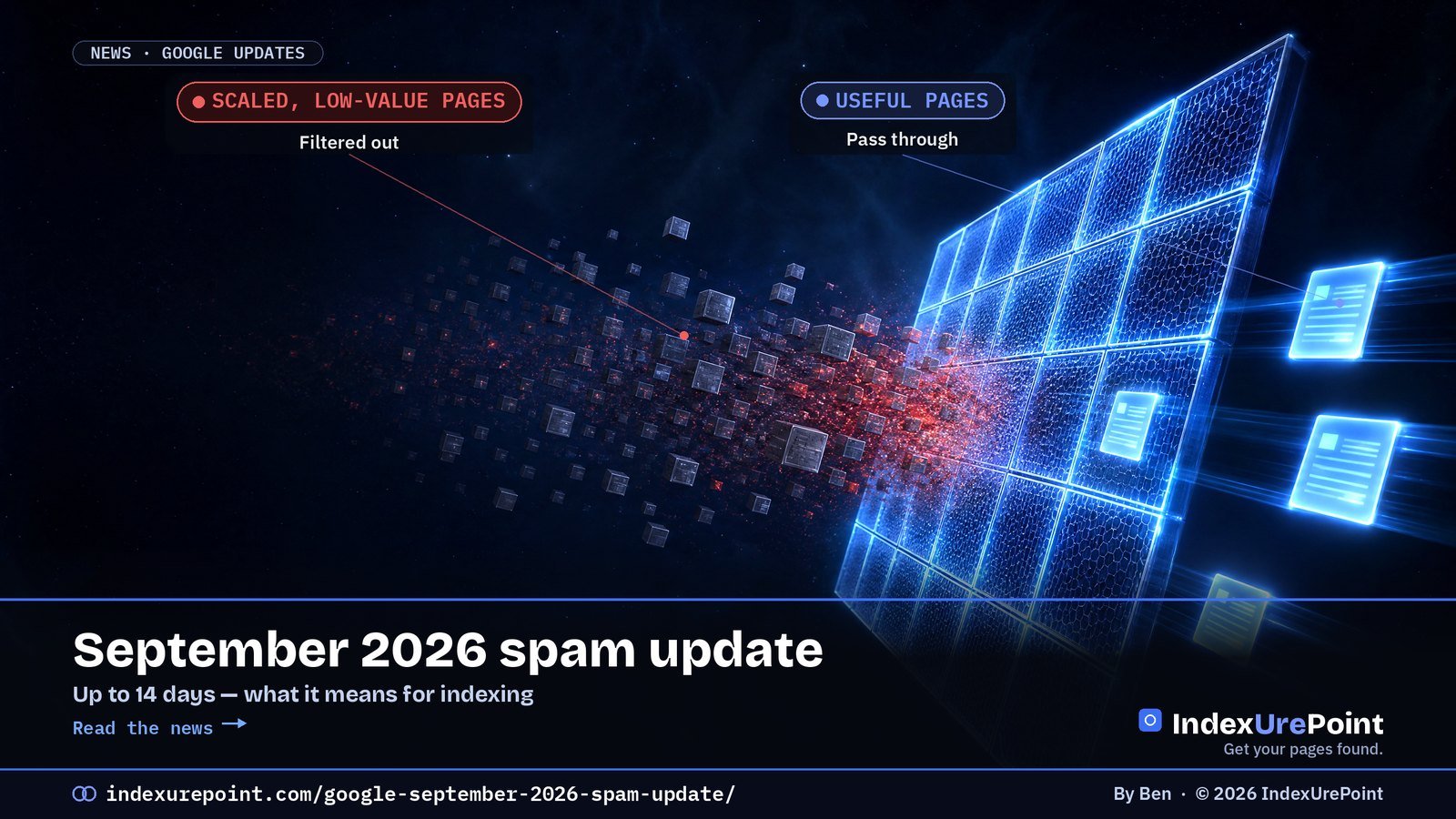
    Google’s September 2026 spam update started on 24 September and finished rolling out on 8 October, after 13 days and 16 hours — far longer than the three earlier spam updates this year. My take: if your plan for getting pages into Google is volume and shortcuts, this is the update that makes that plan expensive.

    Key takeaways
    • Released 24 September 2026 at 09:15 PT, globally and in all languages, with a rollout of up to 14 days; it finished on 8 October after 13 days and 16 hours (Google Search Status Dashboard).
    • It’s the fourth spam update of 2026, after March, June and August — each of which finished in under three days.
    • Since May 2026, Google’s spam policies also cover AI Overviews and AI Mode.
    • Recovery isn’t instant: Google says changes may help once its systems learn “over a period of months” that a site complies.

    What happened?

    Google posted the update on its Search Status Dashboard on Thursday: “Released the September 2026 spam update, which applies globally and to all languages. The rollout may take up to two weeks to complete.” That window ran to roughly 8 October, and Google’s dashboard now lists the rollout as complete as of 8 October 2026, after 13 days and 16 hours.

    The length is the story. According to the same dashboard, the March 2026 spam update finished in 19.5 hours, June’s in about two days and August’s in under three. A two-week allowance usually means Google expects to process a lot — or is being cautious about how it lands. Either way, don’t read too much into ranking swings in the first few days; compare against the full window.

    4thspam update of 2026, after March, June and August — Google
    14 daysmaximum rollout; earlier 2026 spam updates took 19.5 hours to under 3 days
    7confirmed ranking updates in 2026 so far, including core updates in March and May — per PPC Land

    Why this matters for indexing

    Most people think of spam updates as ranking events. For small and new sites, they’re often indexing events too. When Google decides a site’s pages are low value, the symptom in Search Console usually isn’t a penalty notice — it’s pages sliding into “Crawled – currently not indexed” and new pages never making it out of “Discovered”.

    That’s why I’m wary of the “just force it into the index” mindset. Pushing hundreds of near-identical pages through indexing services, or abusing the Indexing API for blog posts, can get URLs crawled. It can’t make them worth keeping — and scaled, low-value pages are exactly what spam systems look for. Google has also said since May that the same rules apply to content aimed at AI Overviews and AI Mode, so “GEO content farms” are in scope too.

    How to check if your site was affected

    • Mark the dates. In Search Console’s Performance report, compare clicks and impressions from 24 September onwards with the weeks before. Wait until the rollout completes before drawing conclusions.
    • Watch the Page indexing report. A sudden rise in “Crawled – currently not indexed” on pages that were indexed before is a stronger signal than a ranking wobble.
    • Check Manual actions. Algorithmic updates don’t send notices, but a manual action would show up under Security & Manual actions.
    • Review Google’s spam policies honestly: scaled content abuse, site reputation abuse, cloaking, doorway pages, link schemes.

    What if you were hit?

    Google’s guidance is blunt: sites that see a change “should review our spam policies”, and improvements come if Google’s systems “learn over a period of months that the site complies” (Google). For link spam it’s harsher: any ranking benefit from spammy links “cannot be regained”. That means removing or improving thin pages, consolidating duplicates with canonicals or redirects, and then waiting — not re-submitting the same URLs every day.

    Our take
    Four spam updates since March is a pattern, not an accident. The sites that come through are the ones that don’t need tricks to get indexed: fewer, better pages, linked from each other, on a server Google can crawl easily. If you have to force a page into the index, ask first whether it deserves to be there.

    FAQ

    When did the September 2026 spam update start?

    On 24 September 2026 at 09:15 Pacific time. Google said the rollout may take up to two weeks to complete; it was complete as of 8 October 2026, after 13 days and 16 hours.

    Does the September 2026 spam update target links?

    Google described it as a normal spam update covering its spam policies, not specifically a link spam update.

    How long does recovery from a spam update take?

    Google says improvements may happen once its systems learn over a period of months that a site complies with its spam policies.

    Can a spam update cause pages to be deindexed?

    It can reduce rankings or remove pages from results. On small sites this often shows up as more pages marked “Crawled – currently not indexed” in Search Console.

    B
    Ben runs IndexUrePoint and manages several websites in Google Search Console and Bing Webmaster Tools, including this one. Spotted an error? Tell us via the contact page; we’ll fix it and note the date. Updated 10 October 2026, after Google confirmed the rollout was complete.

  • AI Overviews in Search Console: The Generative AI Report and Opt-Out Control Explained

    AI Overviews in Search Console: The Generative AI Report and Opt-Out Control Explained

    Google Search Console · AI Overviews · AI Mode

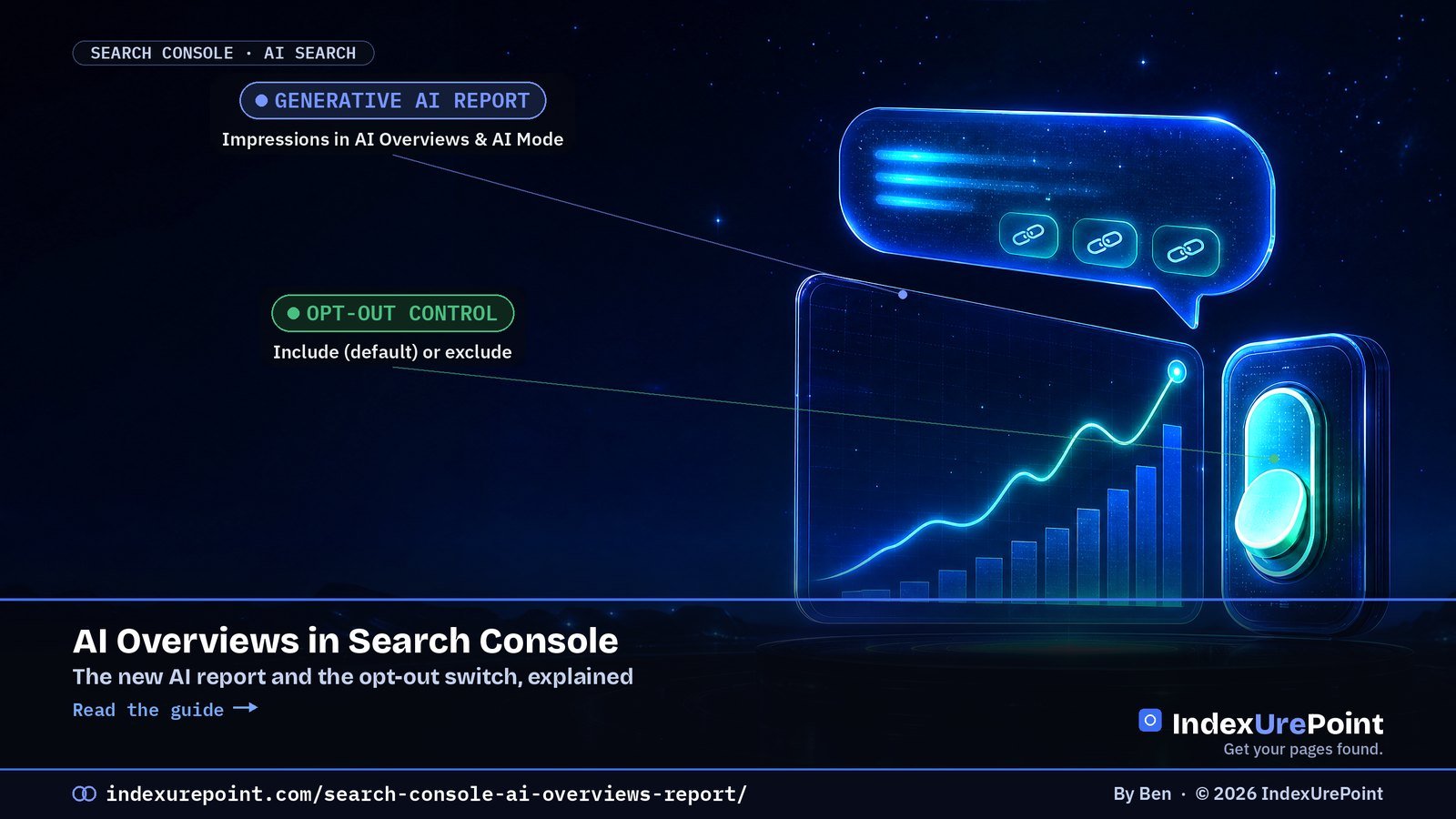
    Google Search Console now has two AI tools every site owner should know: the Generative AI performance report, which shows how often your pages appear in AI Overviews and AI Mode, and the Search generative AI control, which lets you opt your whole site out of those features. Both reached all sites worldwide on 31 August 2026.

    Key takeaways
    • Find the report under Performance → Generative AI (Search) — it shows impressions only, split by page, country, device and date.
    • Find the control under Settings → Search generative AI. The default is include; excluding removes your links and content from AI Overviews, AI Mode and Discover’s AI features within about 1–2 days.
    • Opting out is not a ranking signal for the rest of Search, and it doesn’t stop AI training — that’s still Google-Extended in robots.txt.
    • Since 24 September 2026, a multimodal filter separates searches that started with an image (Lens, Circle to Search) in both the normal and the AI report.
    • Before this, staying out of AI Overviews meant noindex (out of Google entirely) or nosnippet (no normal snippets either).
    How this was checked. Sourced to Google’s help pages for the Generative AI performance report and the Search generative AI control, and to the Search Central announcements of 3 June 2026 and 24 September 2026. First-hand: we opened both features in Search Console for indexurepoint.com on 26 September 2026.

    What changed in Search Console?

    Date Change
    3 June 2026 Google announces Generative AI performance reports for Search and Discover, rolling out to a subset of sites.
    31 August 2026 The report and the Search generative AI control reach all websites worldwide, according to Google’s help pages.
    24 September 2026 A multimodal search type filter is added to the Performance report and the Generative AI report.

    Until this year, Search Console mixed AI Overview appearances into the normal Performance report without telling you which impressions came from AI. And keeping content out of AI Overviews meant blunt tools: noindex, which removes the page from Google, or nosnippet, which also strips your normal search snippets. Both of those limitations are now gone.

    1metric in the Generative AI report: impressions — no clicks, CTR or position — Google
    1–2 daysfor content to be excluded after you switch the control off; some content can take longer — Google
    3features the control covers: AI Overviews, AI Mode and generative AI features in Discover
    4image-search entry points in the multimodal filter: Lens, Circle to Search, image uploads and Chrome’s “Search this image”

    How do you read the Generative AI performance report?

    Open Search Console, choose Performance and then the Generative AI report for Search (Discover has its own). Google defines an impression as a link to your site being shown to a user in a generative AI feature. The report covers AI Overviews and AI Mode together; you can’t separate the two, and experiments in Search Labs aren’t included.

    • Pages — which URLs appeared, reported under their canonical URL. This is the most useful tab: it tells you which pages Google’s AI actually uses as sources.
    • Countries and Devices — where and on what those impressions happened.
    • Dates — the trend over time. The newest data is preliminary and shown as a dotted line.
    • Search type — “Web: text-based” or the new “Web: multimodal”.

    Two details trip people up. First, the chart counts per property: if two of your pages appear in the same AI Overview, the chart counts one impression, while the Pages table counts both — so totals can differ. Second, the usual Search Console limits apply, including a maximum of 1,000 rows in the table. Use Export for anything larger.

    A practical workflow: export the Pages tab, then compare it with the same period in the normal Performance report. Pages with many AI impressions but few clicks are being used as sources without sending visitors; pages with no AI impressions at all may simply not be indexed — check them with how to check if a page is indexed. For raising your citations, see how to get cited in AI search.

    How does the Search generative AI opt-out control work?

    Go to Settings → Search generative AI. You get two choices (three for child properties):

    INCLUDE (DEFAULT)

    Links and content in AI features

    Effect: your pages can be linked in AI Overviews and AI Mode and help ground AI answers. You can get impressions and traffic from them.

    EXCLUDE

    Out of AI features

    Effect: no links to your site and no use of your content as input for AI answers in these features — and no traffic or impressions from them.

    According to Google, the choice applies to the whole property and to child properties, which inherit it unless their owner overrides it. So a domain property decision also applies to blog.example.com and https://example.com/shop/ unless those are configured separately.

    Three things the control does not do, all stated by Google:

    • It is not a ranking or inclusion signal for the rest of Search. Your normal results are unaffected.
    • It doesn’t affect AI training. For that you still need Google-Extended in robots.txt — see AI crawlers and robots.txt.
    • Your content may still help Google Search as a whole, for example in understanding the language of queries and pages.

    Search generative AI control vs Google-Extended vs noindex

    Search generative AI control Google-Extended (robots.txt) noindex
    Keeps you out of AI Overviews and AI Mode Yes No Yes
    Keeps you in normal Google results Yes Yes No — the page leaves Google
    Stops use for Gemini training No Yes —
    Scope Whole property (and children) Whole site or paths Per page or file
    Where you set it Search Console settings robots.txt Meta tag or X-Robots-Tag

    If you only want to protect specific snippets rather than whole pages, the nosnippet rule and data-nosnippet attribute still exist, but they also limit your normal search snippets.

    Should you opt out of AI Overviews and AI Mode?

    For most sites, no. Opting out removes your links from the answers that increasingly sit above the classic results, while your competitors’ content stays in. Google also notes that content from other sites “may appear similar to yours” once you’re excluded — so you may lose the visibility without removing the information.

    The trade-off is real, though. A preprint field study by researchers from the University of Pennsylvania and Northeastern, reported by Search Engine Journal, found that people forced to use AI Mode clicked through to other websites 18.8 percentage points less often than people using regular Search. It’s a forced-adoption experiment, not normal behaviour, but it shows why some publishers want out.

    Opting out can make sense if your content is the product — paywalled research, data, original reporting — and AI answers substitute for a visit. Before switching, look at your Generative AI report: if your AI impressions are high and your clicks from the same pages are steady, staying in is likely helping, not hurting.

    Our take
    Measure first, decide second. The report is free, the control is reversible, and changes take effect in days. Run a few weeks of data, compare AI impressions with real clicks, and only exclude your site if the numbers say AI answers are replacing your visits.

    What is the new multimodal filter?

    Since 24 September 2026, both the Performance report and the Generative AI report have a search type option for web searches that started with an image. Google says it covers Lens, Circle to Search on Android, image uploads to Google Search and Chrome’s right-click “Search this image”. If you sell products or publish visual content, this is the first time you can see that traffic separately. Data only appears if your site actually gets such searches.

    If people find your pages through images, make sure those images carry your name and license too: see image metadata for Google.

    What we see on this site

    Both features are available for indexurepoint.com, which launched this month. As of 10 October 2026, the Generative AI report shows 4 impressions in total for 22 September to 6 October, one each for four pages: the home page, our guides hub, the Indexing API article and the orphan pages article. Four impressions is too small a sample to conclude anything, but it shows the report is live for a site this new. The control is set to the default, include, and we’re leaving it there: an independent guide wants to be cited. We’ll update these numbers as the report fills.

    For the Microsoft side of the same question, Bing Webmaster Tools has its own AI Performance report showing citations in Copilot — see Bing Webmaster Tools.

    FAQ

    Where is the AI Overviews report in Search Console?

    Under Performance, in the Generative AI report for Search. It covers AI Overviews and AI Mode together. Discover has a separate generative AI report.

    Does the Generative AI report show clicks?

    No. It shows impressions only, by page, country, device and date. Compare it with the normal Performance report to judge traffic.

    Can I opt out of AI Overviews without leaving Google Search?

    Yes. Since 31 August 2026 the Search generative AI control in Search Console settings lets you exclude your site from AI Overviews, AI Mode and Discover’s AI features. Google says it isn’t a ranking signal for the rest of Search.

    How long does opting out take?

    Google says content is excluded within 1–2 days after the change goes live, though some content can take longer because of caching.

    Does opting out stop Google training Gemini on my content?

    No. The control only affects Search generative AI features. To limit training, use the Google-Extended token in robots.txt.

    Does blocking Google-Extended remove me from AI Overviews?

    No. Google-Extended controls Gemini training and grounding in Gemini Apps and Vertex AI. Use the Search generative AI control to leave AI Overviews and AI Mode.

    Why does my Generative AI report show no data?

    Google says either your site hasn’t had enough impressions in AI features yet, or it has been excluded with the control. New sites often show zero at first.

    Can I opt out only part of my site?

    Yes, if that part is its own Search Console property, such as a subdomain or URL-prefix property. Child properties inherit the parent’s choice unless their owner changes it.

    B
    Ben runs IndexUrePoint and manages several websites in Google Search Console and Bing Webmaster Tools, including this one. He tests every setup described here on a live site before writing about it. Spotted an error? Tell us via the contact page; we’ll fix it and note the date.

  • Robots.txt Tester & Validator (Free, Uses Google’s Rules)

    Robots.txt Tester & Validator (Free, Uses Google’s Rules)

    Free tool · robots.txt

    This free robots.txt tester tells you whether Googlebot, Bingbot or an AI crawler may fetch a URL under your robots.txt, which rule decides it, and which lines Google will ignore. It follows Google’s published matching rules and runs entirely in your browser.

    Key takeaways
    • Google retired the old robots.txt Tester in Search Console at the end of 2023; the replacement robots.txt report shows fetch status, but doesn’t test individual URLs.
    • Google picks one group: the most specific matching user agent, otherwise *. Groups for different agents are never combined.
    • Within that group the longest matching rule wins; on a tie, Google uses the least restrictive rule (Allow).
    • Paths are case-sensitive; * matches anything and $ anchors the end of the URL.
    • Google ignores crawl-delay, noindex and anything after the first 500 KiB.
    How this was checked. The matching logic implements Google’s robots.txt specification. Before publishing we ran it against every path-matching example, precedence example and user-agent example in that document — all of them return the result Google documents.

    Runs entirely in your browser; nothing you paste is sent anywhere. Matching follows Google's published robots.txt rules. Other crawlers may interpret edge cases differently.

    How do you use this robots.txt tester?

    • Paste your robots.txt. Open yourdomain.com/robots.txt in a browser, copy everything and paste it into the box.
    • Enter a URL or path, such as https://yourdomain.com/shop/?color=red or just /shop/.
    • Pick a crawler and click Test URL. You get Allowed or Blocked, the exact rule and line number that decided it, and which user-agent group was used.
    • Test all crawlers checks the same URL for Googlebot, Bingbot and the main AI crawlers at once — handy after adding rules for GPTBot, ClaudeBot or Google-Extended.
    • Validate file flags lines Google will ignore: misspelled directives, rules outside a group, relative sitemap URLs, crawl-delay and noindex.

    How does Google read a robots.txt file?

    RuleWhat Google does
    Which group appliesThe group with the most specific matching user agent; otherwise the * group. Several groups for the same agent are merged; specific and * groups are not.
    Which rule winsThe rule with the longest matching path. If Allow and Disallow are equally long, the less restrictive Allow wins.
    Wildcards* = any characters; $ = end of URL. A trailing * is ignored.
    CasePaths are case-sensitive: /fish doesn't block /Fish.asp. User-agent names are not.
    Supported fieldsuser-agent, allow, disallow, sitemap. Everything else is ignored.
    File sizeOnly the first 500 KiB is read.
    CachingGenerally up to 24 hours, so changes aren't instant.
    404 or other 4xxTreated as "no restrictions" — except 429.
    5xx server errorGoogle stops crawling for 12 hours, then uses the last good copy for up to 30 days.

    Source for all of the above: Google's robots.txt specification.

    Example: the longest rule wins

    User-agent: *
    Allow: /page
    Disallow: /*.html

    For /page.html, both rules match. /*.html is longer than /page, so the URL is blocked — a case that surprises many site owners. Paste it into the tester to see the deciding rule.

    Example: one group, not two

    User-agent: *
    Disallow: /carrots
    
    User-agent: Googlebot
    Disallow: /shrimp

    Googlebot follows only its own group, so /carrots is allowed for Googlebot even though the * group blocks it. If you add a group for a specific bot, repeat every rule you want it to obey.

    WHAT THIS TOOL CHECKS

    Your rules

    Tells you: whether a URL is allowed or blocked by the file you paste, which rule decides it, and which lines Google ignores.

    WHAT IT CAN'T CHECK

    Your server

    Doesn't see: whether Google can actually fetch robots.txt, firewalls, noindex tags, or whether a page is indexed.

    What replaced Google's robots.txt Tester?

    Google announced a robots.txt report in Search Console in November 2023 and sunset the old Tester. The report (Settings → robots.txt) shows which robots.txt files Google found for your site, when it last fetched them, and any fetch errors or warnings. It doesn't let you test individual URLs, which is what this tool is for.

    To check a single page from Google's side, use URL Inspection: it reports "Crawl allowed? No: blocked by robots.txt" when a rule stops Googlebot. See how to check if a page is indexed.

    What are the most common robots.txt mistakes?

    • Blocking to deindex. Disallow stops crawling, not indexing. A blocked URL can still appear in Google without a description. Use noindex instead — see blocked by robots.txt and the X-Robots-Tag for files.
    • Blocking CSS and JavaScript. Google renders pages; blocking /wp-includes/ or theme assets can make pages look broken to it.
    • A leftover Disallow: / from a staging site. One line blocks the whole site.
    • Forgetting that groups don't combine, as in the example above.
    • Case mismatches: Disallow: /Private/ doesn't block /private/.
    • Relative sitemap URLs. Sitemap: must be a full URL.
    Our take Keep robots.txt boring. For most sites, the best file is a few lines long: allow everything, block genuinely useless URLs such as internal search results, and list your sitemap. Every clever rule is one more thing that can quietly block pages you want in Google.

    FAQ

    Does Google still have a robots.txt tester?

    No. Google replaced the robots.txt Tester in Search Console with a robots.txt report in late 2023. The report shows fetch status and errors but doesn't test individual URLs.

    How do I test if a URL is blocked by robots.txt?

    Paste your robots.txt into the tester above, enter the URL and choose a crawler. It shows whether the URL is allowed or blocked and which rule decides it.

    Which rule wins when Allow and Disallow both match?

    For Google, the rule with the longest matching path wins. If both are the same length, the less restrictive Allow rule wins.

    Is robots.txt case-sensitive?

    Paths are case-sensitive, so /Folder/ and /folder/ are different. User-agent names and directive names are not case-sensitive.

    Does Google support crawl-delay in robots.txt?

    No. Google ignores crawl-delay. Bing supports it.

    Can I use noindex in robots.txt?

    No. Google stopped supporting noindex in robots.txt. Use a robots meta tag or an X-Robots-Tag HTTP header instead.

    How long until Google sees robots.txt changes?

    Google generally caches robots.txt for up to 24 hours, so allow about a day for changes to take effect.

    Is my robots.txt sent to your server?

    No. The tester runs entirely in your browser; nothing you paste leaves your device.

    B
    Ben runs IndexUrePoint and manages several websites in Google Search Console and Bing Webmaster Tools, including this one. He tests every setup described here on a live site before writing about it. Spotted an error? Tell us via the contact page; we'll fix it and note the date.
  • Blocked Due to Access Forbidden (403): What It Means and How to Fix It

    Blocked Due to Access Forbidden (403): What It Means and How to Fix It

    Google Search Console · Page indexing

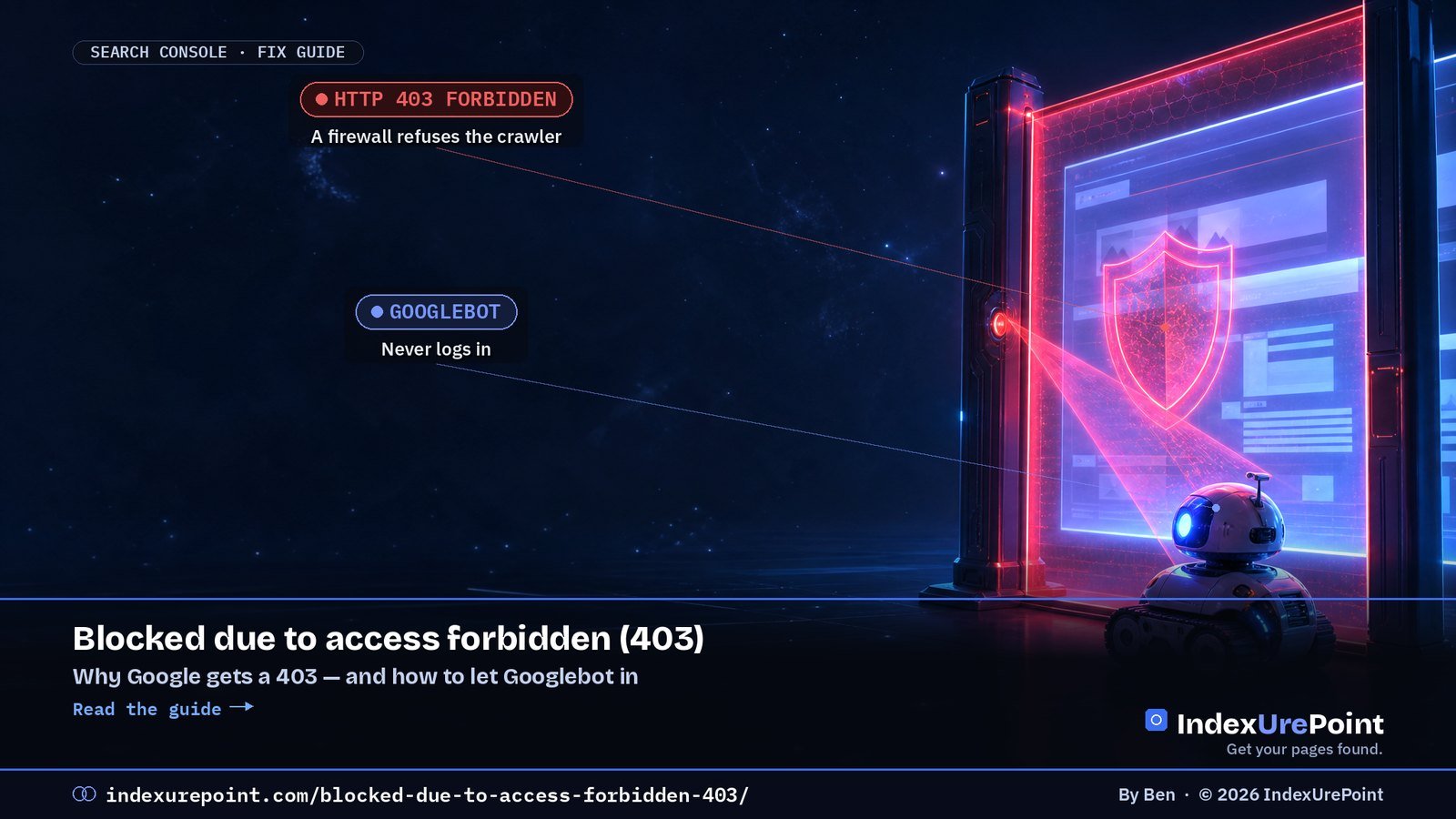
    “Blocked due to access forbidden (403)” means your server refused Googlebot with an HTTP 403. Since Googlebot never logs in, Google says the server “is returning this error incorrectly” — usually because a firewall, CDN bot protection or security plugin mistook Googlebot for a bad bot.

    Key takeaways
    • A 403 on a page you want in Google is always a configuration problem: Google won’t index a page it can’t fetch.
    • The most common cause is security tooling — a WAF, CDN bot filter, hosting firewall or WordPress security plugin — not file permissions.
    • Testing with a fake Googlebot user agent can mislead you: in our test, the hosting CDN blocked spoofed AI-crawler user agents while letting the real crawlers through.
    • The fix: allow verified Googlebot (reverse DNS or Google’s IP lists), then run a live test in URL Inspection.
    • 401 is the sibling status: the page asks for a login. Remove the login or keep the page out of the sitemap.
    How this was checked. Status definitions are quoted from Google’s Page indexing report help; verification steps from Google’s crawler verification guide. First-hand: on 25 September 2026 we sent requests with different crawler user agents to this site and compared the responses with our host’s AI crawler log.

    What does “Blocked due to access forbidden (403)” mean?

    It’s one of the “why pages aren’t indexed” reasons in Search Console’s Page indexing report. Google’s definition is short and blunt:

    “HTTP 403 means that the user agent provided credentials, but was not granted access. However, Googlebot never provides credentials, so your server is returning this error incorrectly. The page will not be indexed.” — Google Search Console Help

    In other words: a human in a browser can probably see the page, but when Googlebot asks for it, something between the internet and your content says no. The page stays out of the index until that changes. If it was already indexed, it can drop out after repeated 403s.

    403“Forbidden”: the server understood the request and refused it — MDN
    0credentials Googlebot ever sends — which is why Google calls a 403 to Googlebot an error
    5 / 5uncached requests with a spoofed GPTBot user agent our host’s CDN answered with 429, in our test
    0real AI-crawler requests blocked on our site in the same 24 hours, per our host’s AI crawler log

    What causes a 403 for Googlebot?

    Cause Typical sign Where to look
    CDN or WAF bot protection Many URLs affected at once, often after enabling a “block bots” or “under attack” setting Security or firewall events in your CDN dashboard
    Hosting firewall or rate limiting 403s spike during heavy crawling Hosting control panel, server error logs
    WordPress security plugin Starts after installing or updating a security plugin The plugin’s blocked-requests log
    Country or IP blocking Site blocks traffic from outside one country; Googlebot mostly crawls from the US Geo-blocking rules in firewall or CDN
    Server rules in .htaccess or NGINX Specific folders or file types return 403 Deny rules in server config
    File or folder permissions 403 for everyone, not just Googlebot File manager: folders usually 755, files 644
    Members-only or staging content Page requires a login or a whitelisted IP Membership or staging plugin settings

    A quick way to split the causes: open the URL in a private browser window. If you get a 403 too, it’s permissions or server rules. If the page loads for you but Google reports 403, it’s almost certainly security tooling reacting to crawlers.

    Our test: why a fake Googlebot can fool you

    A common tip is to “test as Googlebot” by sending a request with Googlebot’s user agent string. We tried that on this site — and extended it to AI crawlers — to see how much you can trust it. Each crawler name was sent five times to an uncached page:

    User agent we sent Responses
    Googlebot 200 200 200 200 200
    bingbot 200 200 200 200 200
    PerplexityBot 200 200 200 200 200
    OAI-SearchBot 200 200 200 403 200
    ClaudeBot 200 403 200 200 200
    GPTBot 429 429 429 429 429

    Taken at face value, that says our site blocks GPTBot and sometimes OpenAI’s and Anthropic’s other crawlers. But our host’s AI crawler log for the same 24 hours showed 21 real AI-crawler requests — 17 from GoogleOther and 4 from OAI-SearchBot — and zero blocked. The difference: our requests came from an ordinary server, not from OpenAI’s or Anthropic’s IP addresses, so the CDN treated them as impostors. That’s exactly what good bot protection should do.

    The lesson for 403 debugging: a spoofed user agent tells you what your firewall does with fake bots. To see what happens to the real Googlebot, use Google’s own tools and your security logs.

    How do you fix “Blocked due to access forbidden (403)”?

    1. Confirm it with a live test

    In Search Console, inspect the URL and click Test live URL. If “Page fetch” fails with a 403, the problem is current. If the live test succeeds, the report may simply be showing an older crawl — see how to check if a page is indexed.

    2. Find what is blocking

    Check, in this order: your CDN or WAF security events, your hosting firewall, your WordPress security plugin’s log, and finally your .htaccess or NGINX deny rules. Look for blocked requests whose user agent contains “Googlebot” around the time of the failed crawl.

    3. Allow verified Googlebot — not the user agent string

    Never whitelist by user agent alone; anyone can type “Googlebot”. Google’s verification guide gives two methods:

    • Reverse DNS: look up the visitor’s IP (for example host 66.249.66.1), check that the hostname ends in googlebot.com, google.com or googleusercontent.com, then do a forward lookup to confirm it points back to the same IP.
    • IP ranges: match against the JSON lists Google publishes, such as common-crawlers.json for Googlebot.

    Most CDNs and security plugins have a “verified bots” or “allow search engines” option that does this for you. Turn it on rather than writing your own rules.

    4. Remove the block and re-test

    Run the live test again. When it passes, click Request indexing for the most important URLs and use Validate fix in the Page indexing report for the rest. Revalidation can take days to weeks, in line with Google’s normal crawl frequency.

    Our take
    Don’t “fix” a 403 by blocking the URL in robots.txt or adding nofollow, as some guides suggest. If the page should be in Google, allow Googlebot. If it shouldn’t, return a proper 404 or use noindex — a 403 is the wrong signal either way.

    What about “Blocked due to unauthorized request (401)”?

    A 401 means the page asked for authorization — typically a password prompt or login wall. Google’s advice: if you want the page indexed, “either remove authorization requirements for this page, or else allow Googlebot to access your pages by verifying its identity”. You can reproduce it by visiting the page in an incognito window.

    403 FORBIDDEN

    “You may not enter”

    Usually: a firewall, bot filter or server rule refusing Googlebot. Fix the block.

    401 UNAUTHORIZED

    “Show your login”

    Usually: password protection, staging sites or members-only pages. Remove the login or keep the page out.

    Staging sites protected with a password are the classic case: they correctly return 401, and you should keep them out of sitemaps and internal links rather than open them up.

    When can you ignore a 403 or 401?

    • Admin and login pages such as /wp-admin/ — they’re supposed to be closed. On this site, /wp-admin/ redirects anonymous visitors to the login page and /.htaccess returns 403, as it should.
    • Members-only content you never meant to rank.
    • Old URLs Google remembers but you no longer link to.

    Do make sure none of these appear in your XML sitemap — a sitemap full of blocked URLs sends mixed signals. See sitemap could not be read and, for the overall picture, why Google isn’t indexing your site.

    FAQ

    What does “Blocked due to access forbidden (403)” mean in Google Search Console?

    Your server returned HTTP 403 when Googlebot requested the page, so Google couldn’t fetch or index it. Because Googlebot never sends credentials, Google treats this as a server configuration error.

    Why does my page load in the browser but show 403 in Search Console?

    Usually because a firewall, CDN bot filter or security plugin treats crawlers differently from visitors. Check its blocked-request log for Googlebot around the crawl time.

    How do I fix a 403 error for Googlebot?

    Find the rule that blocks it, allow verified Googlebot using reverse DNS or Google’s published IP ranges, then run a live test in URL Inspection and request indexing.

    Is it safe to whitelist the Googlebot user agent?

    No. User agents are easy to fake. Verify Googlebot by reverse DNS or Google’s IP lists, or use your CDN’s verified-bots setting.

    Can file permissions cause a 403 in Search Console?

    Yes, but then the page usually returns 403 to everyone, including you in a private window. Folders are typically 755 and files 644.

    What is the difference between 401 and 403 in Search Console?

    401 means the page asked for a login. 403 means the server refused access outright. Googlebot can’t pass either, so neither page will be indexed.

    Should I block 403 pages in robots.txt?

    Not if you want them indexed; fix the block instead. If they’re private, keep them out of your sitemap and links. robots.txt doesn’t remove pages from Google.

    How long until Google re-indexes the page after fixing a 403?

    After a successful live test and an indexing request, usually days; for many URLs, validation can take a few weeks.

    B
    Ben runs IndexUrePoint and manages several websites in Google Search Console and Bing Webmaster Tools, including this one. He tests every setup described here on a live site before writing about it. Spotted an error? Tell us via the contact page; we’ll fix it and note the date.

  • How Often Does Google Crawl a Site? Crawl Frequency and Crawl Budget Explained

    How Often Does Google Crawl a Site? Crawl Frequency and Crawl Budget Explained

    Crawling · Crawl budget · 2026 guide

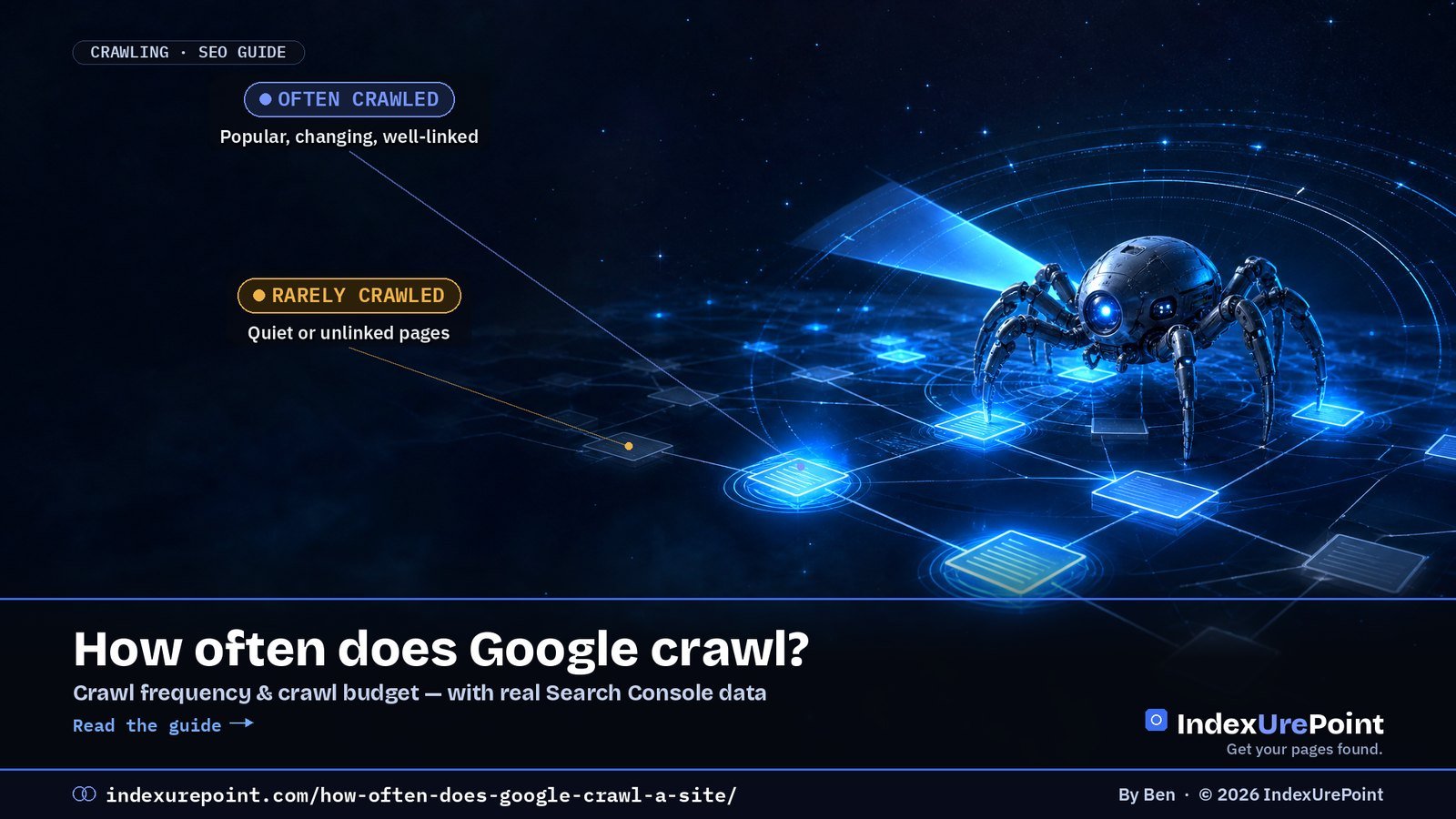
    Google has no fixed crawl schedule: it recrawls each URL as often as it thinks the page changes and matters, within what your server can handle. Popular, frequently updated pages can be fetched several times a day; quiet pages on small sites may wait weeks. For sites under about 10,000 pages, crawl budget is almost never the problem.

    Key takeaways
    • Google decides crawling per URL, not per site, based on crawl demand (popularity, staleness, known URLs) and crawl capacity (how fast and reliably your server responds).
    • Google says crawl budget matters mainly for sites with 1 million+ pages changing weekly, or 10,000+ pages changing daily (Google).
    • After a recrawl request, crawling “can take anywhere from a few days to a few weeks”, and repeating the request doesn’t speed it up (Google).
    • Our own brand-new site: Googlebot made 192 requests in its first two reported days, with an average response time of 298 ms — and 8 of 9 new guides were indexed within a day.
    • Server errors (5xx) and rate-limit responses (429) make Google crawl less; fast, stable responses let it crawl more.
    How this was checked. First-hand: on 25 September 2026 we read the Crawl Stats report in Google Search Console for indexurepoint.com and the URL Inspection records of our newest pages. Everything else is sourced to Google’s documentation on crawl budget (updated July 2026), recrawl requests and the Crawl Stats report.

    How often does Google crawl a site?

    There is no single number, because Google doesn’t crawl “a site” on a timer. Its crawler keeps a queue of known URLs and decides for each one when it’s worth fetching again. Your homepage and a page that changes daily may be fetched several times a day; a two-year-old article that never changes may be revisited only every few weeks or months.

    Figures like “every three to four weeks” that circulate online are averages from specific sites, not Google policy. The honest answer is: as often as Google thinks a page has changed and is worth refreshing, limited by how much your server can take.

    192Googlebot requests to indexurepoint.com in the first two days shown in Crawl Stats (23–24 Sept 2026)
    298 msaverage response time Google measured on our server over the same period
    67 / 33percent of our crawl requests that were refresh vs discovery — even a new site gets recrawled heavily
    10,000+pages changing daily: roughly where Google says crawl budget starts to matter — Google

    What decides how often Google crawls your pages?

    Google’s crawl budget documentation names two forces.

    CRAWL DEMAND

    How much Google wants to crawl

    Driven by: perceived inventory (how many URLs it knows), popularity, staleness (how often pages change) and site-wide events like a site move.

    CRAWL CAPACITY

    How much your server can take

    Driven by: crawl health — response time, time to first byte, server errors and rate-limiting signals — plus Google’s own resource limits.

    In practice that translates into a handful of levers:

    • Popularity: pages with more links pointing to them — from other sites and from your own pages — are crawled more.
    • Change frequency: Google learns how often a URL actually changes. Updating a date without changing content doesn’t fool it for long.
    • Server health: Google says that when a site responds with 5xx errors or 429 rate-limit signals, “the limit goes down and Google crawls less”.
    • URL inventory: thousands of duplicate, filtered or low-value URLs dilute the attention your important pages get.

    What is crawl budget — and do you need to care?

    Crawl budget is the combination of those two forces: the set of URLs Google can and wants to crawl on your site in a given period. Google is direct about who should worry about it:

    Your site Crawl budget a real concern? Focus on instead
    1 million+ pages, content changing weekly Yes URL inventory, server speed, sitemaps
    10,000+ pages, content changing daily Yes Same, plus fast discovery of new URLs
    Many URLs stuck in “Discovered – currently not indexed” Possibly Quality and internal linking first
    A blog or business site under a few thousand pages No Content quality, internal links, indexing issues

    Google’s Crawl Stats help page says the same: “If you have a site with fewer than a thousand pages, you should not need to use this report or worry about this level of crawling detail.” If your small site has pages that aren’t indexed, the cause is almost always quality, duplication or missing links — see crawled vs. discovered – currently not indexed and why Google isn’t indexing your site.

    Real data: how Google crawled a brand-new site

    indexurepoint.com went live in September 2026. This is what Search Console’s Crawl Stats report showed on 25 September, covering the first two days it reported (23–24 September):

    Metric Value
    Total crawl requests 192
    Total download size 5.31 MB
    Average response time 298 ms
    Host status No problems in the last 90 days
    By response 200 OK 94% · 404 5% · 301 1%
    By purpose Refresh 67% · Discovery 33%
    By file type HTML 45% · JavaScript 22% · Image 11% · CSS 7% · Syndication (feeds) 5%
    By Googlebot type Other agent type 32% · Smartphone 24% · Page resource load 22% · Image 12% · Desktop 10%

    Three things stand out. First, only 45% of requests were for HTML pages: the rest were scripts, images, CSS and feeds that Google needs to render pages. Second, two-thirds of requests were refreshes of URLs Google already knew — even on a site a few days old. Third, the URL Inspection records show how quickly new pages were picked up: guides we published on 24 September were crawled between 03:57 and 09:35 the next morning, and by that afternoon eight of the nine were indexed. Each was linked from other pages on the site and listed in the sitemap; details in how long Google takes to index.

    The 5% of 404s are worth a look on any site: check which URLs they are, then either fix the links pointing to them or confirm the pages are meant to be gone. On a small site it’s harmless; on a large one, those wasted requests add up.

    How do you see when Google last crawled your site?

    • One page: URL Inspection in Search Console shows “Last crawl” with date and time, plus whether it was crawled as smartphone or desktop. See how to check if a page is indexed.
    • The whole site: Settings → Crawl stats shows requests per day, response times, status codes, file types and Googlebot types for the last 90 days.
    • Every request: your server’s access logs list each Googlebot visit with a timestamp. Verify real Googlebot by reverse DNS or Google’s published IP ranges, since user agents can be faked.

    How do you get Google to crawl your site more often?

    • Link new pages from strong existing pages. Internal links are how Google finds and prioritises URLs; pages nobody links to are crawled last — see orphan pages.
    • Keep your XML sitemap accurate, with only indexable URLs and a real lastmod date when content changes.
    • Make the server fast and stable. Google’s documentation lists improving load speed and supporting 304 Not Modified caching among its best practices.
    • Clean up your URL inventory: consolidate duplicates, return 404 or 410 for pages that are gone, fix soft 404s and avoid redirect chains.
    • Update content for real. Pages that genuinely change get refreshed more often.
    • Request indexing sparingly for key new or changed pages. There is a daily quota, and repeating a request doesn’t make it faster.
    • For Bing, use IndexNow to push changes instantly. Google doesn’t support it.

    What goes wrong with crawling?

    • Blaming crawl budget on a small site. With a few hundred pages, “crawled but not indexed” is a quality or duplication signal, not a budget problem.
    • Parameter and filter URLs. Faceted navigation can create endless URL combinations that soak up crawling; a r/TechSEO thread titled “Google prioritizing crawl budget on filtered URLs” describes this pattern. Block or consolidate them.
    • Slow or failing servers. Timeouts and 5xx errors make Google back off.
    • A failing robots.txt. If robots.txt returns neither a valid file nor a 404, Google says it will slow or stop crawling until it gets an acceptable response.
    • Redirect chains. Every hop is another request; point links straight at the final URL — see page with redirect.
    • Spamming “Request indexing”. It hits the quota and changes nothing.
    Our take
    For most sites, “how often does Google crawl me?” is the wrong worry. Google sent nearly a hundred requests a day to our week-old site and indexed new pages overnight — because they were linked, fast and worth indexing. Fix those three things before you think about crawl budget.

    Crawl requests failing with 403? Then Google can’t crawl those pages at all. See blocked due to access forbidden (403).

    FAQ

    How often does Google crawl a website?

    There is no fixed schedule. Google recrawls each URL based on how popular it is and how often it changes, limited by your server’s capacity. Important pages can be crawled daily or more; rarely changed pages may wait weeks.

    How do I check when Google last crawled my page?

    Use URL Inspection in Google Search Console. It shows the last crawl date and time and whether the page was crawled as smartphone or desktop.

    How long after requesting indexing does Google crawl?

    Google says crawling can take anywhere from a few days to a few weeks. Requesting it again for the same URL won’t make it faster.

    Do small websites need to worry about crawl budget?

    Usually not. Google says crawl budget mainly matters for sites with over a million pages changing weekly or over 10,000 pages changing daily.

    Can I make Google crawl my site faster?

    Indirectly: link new pages from indexed pages, keep your sitemap accurate, make your server fast and reliable, and remove duplicate or broken URLs.

    Does Google support the crawl-delay directive?

    No. Googlebot ignores crawl-delay in robots.txt. If Google is overloading your server, temporarily returning 503 or 429 responses makes it slow down.

    What does “refresh” vs “discovery” mean in Crawl Stats?

    Discovery means Google requested a URL it had never crawled before. Refresh means it recrawled a URL it already knew.

    Is crawl frequency a ranking factor?

    No. Being crawled more often doesn’t raise rankings; it only means Google sees your changes sooner.

    B
    Ben runs IndexUrePoint and manages several websites in Google Search Console and Bing Webmaster Tools, including this one. He tests every setup described here on a live site before writing about it. Spotted an error? Tell us via the contact page; we’ll fix it and note the date.

  • X-Robots-Tag: What It Is, Values, and How to Set It (with Examples)

    X-Robots-Tag: What It Is, Values, and How to Set It (with Examples)

    Part of our guide: canonical tags and indexing, every Search Console status explained →

    Indexing · HTTP headers

    The X-Robots-Tag is an HTTP response header that gives search engines the same indexing instructions as a robots meta tag — noindex, nofollow, nosnippet and more — but works on any file type, including PDFs, images, XML and plain text, where a meta tag can’t be placed.

    Key takeaways
    • Google: “Any rule that can be used in a robots meta tag can also be specified as an X-Robots-Tag” (Google Search Central).
    • Use it for non-HTML files (PDFs, images, feeds, text files) and for applying rules to whole folders or file types at server level.
    • It only works if the URL can be crawled. Block the URL in robots.txt and Google never sees the header.
    • When rules conflict, Google uses “the sum of the negative rules” — the most restrictive combination wins.
    • noarchive and nocache are no longer used by Google Search, but Bing still uses them to limit use in Copilot.
    How this was checked. Written against Google’s robots meta tag specification (last updated March 2026) and Bing’s list of supported robots values. First-hand: on 25 September 2026 we inspected the response headers of eight URL types on this WordPress site; the results are in the example section below.

    What is the X-Robots-Tag?

    Every time a browser or crawler requests a URL, the server replies with HTTP headers before the content itself: the status code, the content type, caching rules. The X-Robots-Tag is one of those headers. It tells search engines whether they may index the URL and how they may show it.

    HTTP/2 200
    content-type: application/pdf
    x-robots-tag: noindex

    That response says: this PDF may be fetched, but don’t show it in search results. It does the same job as <meta name=”robots” content=”noindex”> in an HTML page — which a PDF simply can’t contain. The header name, the user-agent names and the values are all case-insensitive, according to Google.

    How is it different from a meta robots tag and robots.txt?

    X-Robots-Tag Meta robots tag robots.txt
    Where it lives HTTP response header HTML of the page One file at the site root
    Controls Indexing and display Indexing and display Crawling (fetching)
    Works on PDFs, images, XML, text Yes No Yes
    Rules per folder or file type Yes, via server config No, page by page Yes, via paths
    Removes a URL from the index Yes (noindex) Yes (noindex) No — can leave it indexed without a snippet
    Visible in page source No — only in headers Yes Yes, at /robots.txt

    The last row is why X-Robots-Tag problems are hard to spot: you can view a page’s source and see nothing wrong, while the server quietly sends noindex. The difference between blocking and noindexing is covered in blocked by robots.txt and excluded by noindex tag.

    Which values can you use?

    Google supports these rules in both the meta tag and the header:

    Value What it does in Google
    noindex Don’t show the URL in search results
    nofollow Don’t follow the links on the page
    none Same as noindex, nofollow
    nosnippet No text snippet or video preview
    max-snippet:[n] Snippet of at most n characters
    max-image-preview:[setting] Maximum image preview size (none, standard, large)
    max-video-preview:[n] Video preview of at most n seconds
    noimageindex Don’t index images on the page
    notranslate Don’t offer a translation in results
    unavailable_after:[date] Stop showing the URL after a date
    indexifembedded Allow indexing when embedded via iframe despite noindex
    noarchive, nocache No longer used by Google Search

    Bing is different on the last row. Bing supports the X-Robots-Tag too, and for Bing noarchive means “do not link in Chat and Copilot”, while nocache limits Copilot to URL, title and snippet. If you want to control how Microsoft’s AI uses your content, these are the values that do it — see AI crawlers and robots.txt.

    You can also target one crawler by name and combine several headers:

    X-Robots-Tag: googlebot: nofollow
    X-Robots-Tag: otherbot: noindex, nofollow
    X-Robots-Tag: unavailable_after: 31 Dec 2026 23:59:59 CET

    When should you use the X-Robots-Tag?

    • PDFs and documents you want downloadable but not ranking — price lists, internal manuals, duplicate PDF versions of HTML pages.
    • Images you don’t want in Google Images.
    • Machine files such as XML sitemaps, feeds, API responses and llms.txt, which are meant for bots and look odd as search results.
    • Whole sections, such as a staging folder or a directory of print pages, where editing every template is impractical.
    • Temporary content with unavailable_after, like event or offer pages.

    For normal HTML pages, a meta robots tag set by your SEO plugin is usually simpler and easier for your team to see.

    How do you set the X-Robots-Tag?

    Apache (.htaccess)

    This is Google’s own example for all PDFs:

    <Files ~ "\.pdf$">
      Header set X-Robots-Tag "noindex, nofollow"
    </Files>

    NGINX

    location ~* \.pdf$ {
      add_header X-Robots-Tag "noindex, nofollow";
    }

    WordPress and PHP

    Yoast SEO already sends noindex, follow on its XML sitemaps. For your own output, send the header before any content, for example in a small plugin:

    header( 'X-Robots-Tag: noindex', true );

    That’s how our site plugin marks /llms.txt as noindex. On a CDN such as Cloudflare you can add the header with a response-header transform rule instead of touching the server.

    How do you check a URL’s X-Robots-Tag?

    • Command line: curl -I https://example.com/file.pdf shows all response headers.
    • Browser: DevTools → Network → click the request → Response Headers.
    • Search Console: URL Inspection reports “Indexing allowed? No: ‘noindex’ detected in ‘X-Robots-Tag’ http header” when the header blocks indexing. The live test shows the current state; see how to check if a page is indexed.

    Example: the headers on this site

    On 25 September 2026 we requested eight URL types on indexurepoint.com and recorded the X-Robots-Tag:

    URL X-Robots-Tag Set by
    /sitemap_index.xml noindex, follow Yoast SEO
    /post-sitemap.xml noindex, follow Yoast SEO
    /robots.txt noindex, follow Yoast SEO
    /llms.txt noindex Our site plugin
    /wp-json/ noindex WordPress REST API response
    /feed/ none —
    /?s=test (search) none — uses meta robots noindex, follow instead Yoast SEO
    Article pages none — meta robots index, follow Yoast SEO

    The pattern is exactly what you want: machine files carry a header noindex, human pages are controlled by the meta tag, and nothing a visitor should find is blocked. Note that the sitemaps are noindexed but not blocked in robots.txt — Google still has to crawl them to read the URLs inside.

    What goes wrong with the X-Robots-Tag?

    • An invisible noindex. A server rule, CDN setting or security plugin adds noindex to every response, and nobody notices because the page source looks clean. A r/TechSEO thread titled “Hidden X-Robots-Tag: noindex reported by GSC – can’t find source” is a typical example. Check the live headers, not the HTML.
    • Staging rules going live. A site-wide noindex header on the staging server gets copied to production during launch.
    • Blocked and noindexed at once. If robots.txt disallows the URL, Google can’t read the header, so the URL may stay indexed. Remove the Disallow until the noindex has been processed.
    • Conflicting rules. Header says noindex, meta tag says index: Google applies the most restrictive combination, so the page stays out.
    • Relying on noarchive for Google. Google no longer uses it. It still matters for Bing and Copilot.
    • Expecting instant removal. The header takes effect when Google recrawls the URL. For a fast temporary hide, see how to remove a URL from Google.
    Our take
    Use the meta robots tag for pages and the X-Robots-Tag for everything else. And whenever a page drops out of Google for no visible reason, check the response headers before anything else — a stray header noindex is one of the quickest problems to fix and one of the easiest to miss.

    FAQ

    What is an X-Robots-Tag?

    An HTTP response header that tells search engines whether a URL may be indexed and how it may be shown. It supports the same rules as the robots meta tag, such as noindex and nosnippet.

    What is the difference between X-Robots-Tag and robots.txt?

    robots.txt controls whether a URL may be crawled. X-Robots-Tag controls whether a crawled URL may be indexed and shown. A URL blocked in robots.txt can’t have its X-Robots-Tag read.

    What does “noindex detected in X-Robots-Tag http header” mean?

    Search Console found a noindex rule in the URL’s HTTP response headers, so Google won’t index it. Remove the rule in your server, CDN or plugin configuration if the page should be indexed, then request indexing.

    Can I use X-Robots-Tag on HTML pages?

    Yes. It works on any URL. For HTML pages a meta robots tag is usually easier to manage, but the header is useful for applying rules to many pages at once.

    Does Google still support noarchive?

    No. Google’s documentation lists noarchive and nocache as no longer used by Google Search. Bing still uses them to limit how content appears in Copilot.

    Which wins if the header and meta tag disagree?

    Google combines them and applies the sum of the negative rules, so the most restrictive result applies.

    Should XML sitemaps have a noindex X-Robots-Tag?

    It’s common and harmless: Yoast SEO does it by default. Google still reads the sitemap, it just won’t show the XML file itself in search results. Don’t block sitemaps in robots.txt.

    How do I check the X-Robots-Tag of a URL?

    Run curl -I on the URL, open the Network tab in your browser’s developer tools, or use URL Inspection in Search Console.

    B
    Ben runs IndexUrePoint and manages several websites in Google Search Console and Bing Webmaster Tools, including this one. He tests every setup described here on a live site before writing about it. Spotted an error? Tell us via the contact page; we’ll fix it and note the date.

  • What Is llms.txt? Who Uses It and Whether You Need One (2026)

    What Is llms.txt? Who Uses It and Whether You Need One (2026)

    AI Search · llms.txt · 2026 guide

    llms.txt is a Markdown file at the root of a website that gives AI agents a short, curated map of its most important pages. It is a proposal, not a standard: Google Search says it doesn’t use it, Chrome’s Lighthouse now checks for it, and it helps agents far more than it helps rankings.

    Key takeaways
    • Proposed by Jeremy Howard of Answer.AI on 3 September 2024 at llmstxt.org. Only one element is required: an H1 with the site’s name.
    • Google’s AI optimization guide says you don’t need llms.txt to appear in Google Search or its AI features, “as Google Search itself doesn’t use them”.
    • Chrome’s Lighthouse 13.3 added an llms.txt audit for agent readiness. A missing file scores N/A; only a server error fails.
    • Documentation sites from Anthropic, OpenAI, Google and Perplexity all serve one — we checked all four on 25 September 2026.
    • Google’s John Mueller has said it can make sense to noindex the file so it doesn’t show up in search results. We serve ours with an X-Robots-Tag: noindex header.
    How this was checked. First-hand: indexurepoint.com has served a live llms.txt since September 2026, generated by our own plugin, and we inspected its headers and those of four AI companies’ documentation sites on 25 September 2026. Claims about Google, Chrome and the specification are sourced to their own documentation or to named reporting, linked inline.

    What is llms.txt?

    llms.txt is a plain-text file written in Markdown and served at /llms.txt, the same place robots.txt lives. It gives a language model or AI agent a compact summary of what a site is about and a list of links to the pages that matter, so the agent doesn’t have to wade through navigation, scripts and ads to work that out.

    The proposal was published by Jeremy Howard of Answer.AI on 3 September 2024. Its core idea is stated plainly: the file “stays small enough to fit in context”, and the detail “lives behind the links”. It is a community proposal — not a W3C, IETF or search-engine standard — and nobody is obliged to read it.

    5,400monthly US searches for “llms.txt” (DataForSEO, Sept 2026) — interest far ahead of adoption by search engines
    2024year the proposal was published, on 3 September, by Jeremy Howard — llmstxt.org
    0ranking or AI-feature effect in Google Search: “Google Search itself doesn’t use them” — Google Search Central
    4 / 4AI-company documentation sites we tested serve an llms.txt: Anthropic, OpenAI, Google AI, Perplexity (25 Sept 2026)

    What does the llms.txt format look like?

    The specification defines a fixed order, so the file can be read by a person, a model or a simple parser:

    • H1 with the site or project name — the only required element.
    • A blockquote with a short summary containing the key information needed to understand the rest.
    • Optional paragraphs or lists (no headings) with more detail on how to interpret the site.
    • H2 sections with “file lists”: each entry is a Markdown link [name](url), optionally followed by a colon and a note.
    • An “Optional” H2 section, by convention, for secondary links an agent can skip when context is tight.

    This is the start of the live file on this site:

    # IndexUrePoint
    
    > Independent, plain-English guides to getting web pages found
    > and indexed on Google, Bing and AI search ... English and Dutch.
    
    ## Guides (English)
    
    - [How to Remove a URL from Google](https://indexurepoint.com/remove-url-from-google/): Fast temporary hide versus permanent removal.
    - [Orphan Pages: What They Are and How to Fix Them](https://indexurepoint.com/orphan-pages/): Pages nobody links to get crawled last.

    The proposal also suggests offering clean Markdown copies of important pages at the same URL with .md appended. Some documentation platforms additionally publish an llms-full.txt with all content in one file; that is a common convention, not part of the core proposal.

    Who actually uses llms.txt?

    This is where most articles overpromise. Here is what can be verified.

    • Google Search: no. Google’s guide to optimizing for generative AI features (updated July 2026) says you don’t need AI text files or Markdown to appear in Search or its AI features. Gary Illyes said at Search Central Live in July 2025 that Google doesn’t support llms.txt and isn’t planning to (Search Engine Land). When Google added llms.txt files to some of its own developer sites, John Mueller said plainly it was not an endorsement.
    • Chrome Lighthouse: it checks. Lighthouse 13.3 moved its Agentic Browsing category into the default report, including an llms.txt audit (Search Engine Journal). The audit is about agents, not rankings: without the file, Chrome’s documentation says, “agents may spend more time crawling the site”.
    • AI documentation sites: widely. Anthropic (code.claude.com/docs/llms.txt), OpenAI (developers.openai.com/llms.txt), Google (ai.google.dev/api/llms.txt) and Perplexity (docs.perplexity.ai/llms.txt) all returned HTTP 200 when we checked. Coding agents that read documentation are the clearest real-world audience.
    • AI answer engines citing ordinary websites: unproven. We found no official statement from OpenAI, Anthropic, Perplexity or Microsoft that llms.txt influences which websites are cited in answers. Critics such as Mark Williams-Cook argue the evidence for it is no better than astrology.

    How is llms.txt different from robots.txt and a sitemap?

    robots.txt XML sitemap llms.txt
    Purpose Allow or block crawling List every indexable URL Curate the key pages for AI agents
    Format Plain directives XML Markdown
    Read by Google Search Yes Yes No
    Controls access Yes (for compliant bots) No No
    Status IETF standard (RFC 9309) sitemaps.org protocol Community proposal

    The key point: llms.txt does not block or allow anything. If you want to control what AI crawlers can fetch, that is still a job for robots.txt rules per AI crawler. And if you want pages discovered by search engines, you still need a working sitemap and internal links.

    Do you need an llms.txt file?

    WORTH IT

    Docs, APIs, small sites

    Why: coding agents read documentation; on a small site the file takes minutes and costs nothing to maintain.

    LOW PRIORITY

    Chasing Google or AI rankings

    Why: Google Search doesn’t use it, and no AI answer engine has confirmed it affects citations.

    If your goal is visibility in Google’s AI Overviews or AI Mode, spend the time on indexing and content instead — the steps in how to get cited in AI search and AEO vs GEO. If your site is documentation that developers use with AI coding tools, an llms.txt (and Markdown versions of key pages) is a reasonable, low-cost addition.

    How do you create an llms.txt file?

    Option 1 — Yoast SEO (WordPress)

    Yoast added llms.txt generation on 10 June 2025, free for all users. Turn it on under Yoast SEO → Settings → Site features; the plugin builds the file from your site data and refreshes it weekly. You can let it pick content automatically or choose pages yourself.

    Option 2 — write it by hand

    Create a UTF-8 text file named llms.txt, follow the order above, and upload it to your site’s root so it loads at yourdomain.com/llms.txt. Keep it short: your 10 to 30 most useful pages, each with a one-line note, beats a dump of every URL.

    Option 3 — generate it dynamically

    That’s what we do. Our site plugin builds /llms.txt on request from the published guides, grouped into English and Dutch sections, and uses each article’s excerpt as the note. New articles appear automatically — both guides we published earlier today were in the file the moment they went live.

    Then: add a noindex header

    John Mueller has said using noindex for llms.txt “could make sense”, because other sites might link to it and it could otherwise get indexed, “which would be weird for users”. Since it’s a text file you can’t add a meta tag, so send an HTTP header instead. Ours returns:

    HTTP/2 200
    content-type: text/plain; charset=utf-8
    x-robots-tag: noindex

    Check yours with the URL Inspection tool or a header checker; the header itself is explained in our X-Robots-Tag guide.

    What goes wrong with llms.txt?

    • Treating it as a ranking hack. Selling llms.txt as a way into AI Overviews contradicts Google’s own documentation.
    • Server errors. A 500 on /llms.txt is the one thing Lighthouse fails you for. A 404 is fine; a broken file is not.
    • Links to non-indexable pages. Listing redirected, noindexed or deleted URLs sends agents to dead ends. Keep it in sync with your sitemap.
    • Dumping everything. A file with thousands of links defeats the purpose of fitting in context. Curate.
    • Blocking the file in robots.txt. Then compliant AI agents can’t read it. Use noindex, not Disallow.
    • Duplicate generators. Two plugins both creating the file can conflict. Pick one method.
    Our take
    llms.txt is cheap, harmless and useful for AI agents reading documentation — so we run one. But it is not an SEO lever, and anyone promising more AI citations from it is selling a guess. Get your pages indexed and worth citing first; add llms.txt afterwards, with a noindex header.

    Want to control AI Overviews instead? llms.txt won’t do it, but Search Console’s new opt-out control will: AI Overviews in Search Console.

    FAQ

    Is llms.txt actually used?

    By some AI agents and tools, especially those reading developer documentation, and Chrome’s Lighthouse checks for it. Google Search does not use it, and no AI answer engine has confirmed it affects which websites get cited.

    Is llms.txt mandatory?

    No. It is an optional community proposal. Lighthouse marks a missing file as not applicable rather than failing it.

    Does llms.txt help with Google AI Overviews?

    No. Google’s AI optimization guide says you don’t need AI text files to appear in Google Search or its AI features, because Google Search doesn’t use them.

    What is llms-full.txt?

    A convention used by some documentation platforms: one file containing the full text of the documentation, for tools that want everything at once. It is not required by the core llms.txt proposal.

    How do I generate llms.txt in WordPress?

    Yoast SEO can generate it for free under Settings, Site features. You can also upload a hand-written file to your site root or generate it with a small plugin.

    Should I noindex my llms.txt file?

    It’s sensible. Google’s John Mueller said noindex could make sense so the file doesn’t appear in search results. Use an X-Robots-Tag: noindex HTTP header.

    Does llms.txt replace robots.txt?

    No. robots.txt controls crawling access; llms.txt only suggests which pages matter. You need robots.txt to allow or block AI crawlers.

    Where do I put the llms.txt file?

    In the root of your domain, so it loads at https://yourdomain.com/llms.txt, served as plain text with UTF-8 encoding.

    B
    Ben runs IndexUrePoint and manages several websites in Google Search Console and Bing Webmaster Tools, including this one. He tests every setup described here on a live site before writing about it. Spotted an error? Tell us via the contact page; we’ll fix it and note the date.