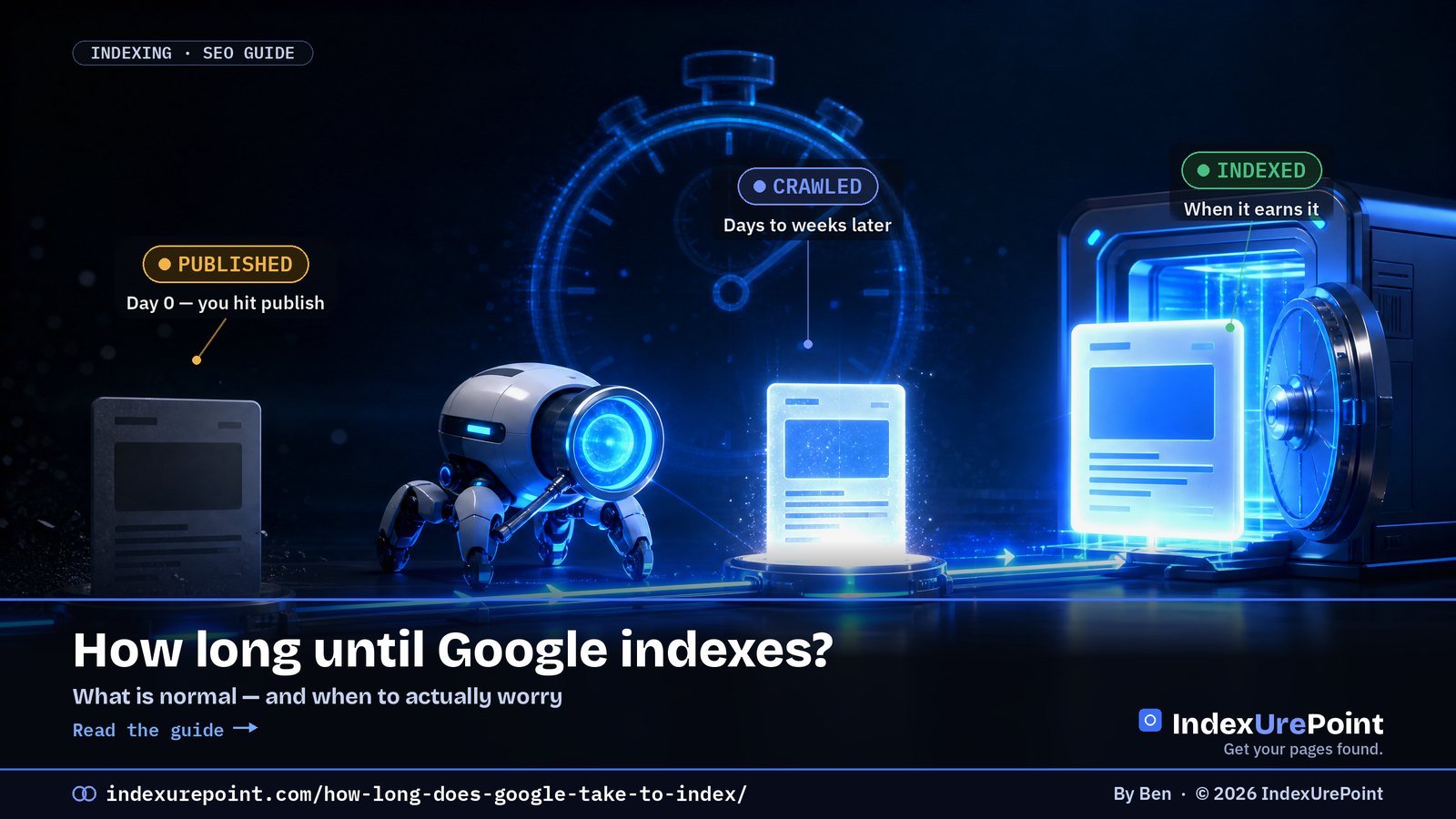
Category: Blog

Your blog category

  • Sitemap Could Not Be Read / Couldn’t Fetch: How to Fix It

    Sitemap Could Not Be Read / Couldn’t Fetch: How to Fix It

    Lees deze gids in het Nederlands →

    Google Search Console · Sitemaps

    “Sitemap could not be read” (or “Couldn’t fetch”) means Google tried to load your sitemap and failed — wrong URL, a block, broken XML, or simply a brand-new submission that has not been processed yet.

    Key takeaways
    • First check: open the sitemap URL yourself in a private window. Loads fine → usually wait; fails → fix URL, block or XML.
    • The classic mistake is submitting /sitemap.xml out of habit while your plugin serves /sitemap_index.xml.
    • On brand-new sites “Couldn’t fetch” often flips to “Success” by itself within days — ours did within minutes.
    • Limits: 50,000 URLs or 50 MB uncompressed per sitemap; beyond that, split and use a sitemap index.
    • A sitemap is a discovery aid, not an indexing switch: well-linked pages get found even while it misbehaves.
    How this was checked. Written against Google’s sitemap documentation and the Sitemaps report help.
    Short answer

    “Sitemap could not be read” or “Couldn’t fetch” means Google tried to load your sitemap and failed — it got an error, was blocked, or couldn’t parse the file.

    First open the sitemap URL in your browser. If it loads as clean XML, the cause is usually Google’s side or a new submission still pending — give it a few days. If it doesn’t load, fix the URL, the blocking rule or the XML error below.

    The 2-minute first check

    Paste your exact sitemap URL into a browser (logged out / private window).
    It loads as a list of URLs
    1. Is it the exact URL you submitted?
    2. Test it with URL Inspection → Test live URL.
    3. New submission? Wait a few days, then resubmit once.
    It errors, redirects or shows HTML
    1. 404? You submitted the wrong URL.
    2. Login, firewall or challenge page? Googlebot is blocked.
    3. Garbled or blank? The XML is broken.

    Symptom in the browser Likely cause Fix
    404 Wrong sitemap URL submitted Submit the URL your plugin generates
    Login/challenge page Firewall or bot protection blocks Googlebot Whitelist verified search bots
    Blank or garbled output Broken XML, output before <?xml, cache plugin Validate XML; exclude sitemap from caching
    Loads perfectly New submission or Google-side delay Wait a few days, resubmit once

    The real causes

    • Wrong URL. WordPress with Yoast uses /sitemap_index.xml; WordPress core uses /wp-sitemap.xml; Rank Math uses /sitemap_index.xml. Submitting /sitemap.xml by habit is the classic mistake.
    • Blocked for Googlebot. A robots.txt rule, a security plugin, a firewall or bot-protection challenge that lets you in but not Google.
    • Broken XML. Blank lines or PHP warnings before the <?xml declaration, unescaped ampersands, or a caching plugin serving a minified HTML version.
    • Too big. A single sitemap may hold at most 50,000 URLs or 50 MB uncompressed. Split larger ones and use a sitemap index.
    • Server errors or timeouts while Google fetched it — slow hosting, rate limiting, 5xx responses.
    • A brand-new submission. On new sites the report often shows “Couldn’t fetch” for a while even when the file is fine. Many site owners see it flip to “Success” on its own.

    Fixes that work

    • Submit the exact URL your plugin generates, and delete stale submissions of old sitemap URLs.
    • Exclude sitemaps from caching and minification, and whitelist Googlebot in your security or firewall settings.
    • Validate the XML with any online XML sitemap validator; fix anything before the opening <?xml line.
    • List the sitemap in robots.txt with a Sitemap: line, so every crawler — including Bing — finds it.
    • Resubmit once after fixing. Repeated resubmits don’t speed anything up.
    Keep perspective
    A sitemap is a discovery aid, not an indexing switch. Pages that are well linked internally get found even while the sitemap is misbehaving. If pages are found but still not indexed, the problem lies elsewhere — start with Crawled vs. Discovered.
    Our take
    Before you panic about “Couldn’t fetch,” open the URL yourself. If it loads cleanly for a logged-out visitor, you’re mostly waiting on Google. If it doesn’t, the fix is almost always one of the five causes above.

    FAQ

    Why does Search Console say “Couldn’t fetch” when my sitemap works?

    On new submissions this status often appears temporarily. If the file loads for logged-out visitors and passes a live test, wait a few days. If it persists, check firewall or bot-protection rules that might treat Googlebot differently.

    Does a sitemap error stop my site from being indexed?

    No. Google also discovers pages through links. A working sitemap helps discovery, especially on new or large sites, but it isn’t required for indexing.

    How many URLs can one sitemap contain?

    Up to 50,000 URLs or 50 MB uncompressed. For more, split into several sitemaps and submit a sitemap index file.

    Should I submit my sitemap to Bing too?

    Yes. Submit it in Bing Webmaster Tools and add the Sitemap line to robots.txt. For instant updates on Bing, also use IndexNow.

    Should sitemaps be in robots.txt?

    Yes. Add a Sitemap: line with the full URL. Every major crawler, including Bing, reads it from there even without a manual submission.

    Can I submit more than one sitemap?

    Yes. You can submit several sitemaps or one sitemap index that references them all; Search Console lists each with its own status.

    iP
    IndexUrePoint is an independent guide to getting your pages found and indexed — Google, Bing, and AI search. We test tools ourselves and say plainly when something doesn’t work. Spotted an error? Tell us via the contact page; we’ll fix it and note the date.

  • Excluded by ‘noindex’ Tag: Find It, Remove It, Get Indexed

    Excluded by ‘noindex’ Tag: Find It, Remove It, Get Indexed

    Lees deze gids in het Nederlands →

    Google Search Console · noindex

    “Excluded by noindex tag” means Google crawled your page, found an instruction not to index it, and obeyed — the only question is whether you put that instruction there on purpose.

    Key takeaways
    • Intentional noindex (thank-you pages, archives, logins) needs no action; accidental noindex on money pages is an emergency with a one-setting fix.
    • A noindex hides in four places: the robots meta tag, the X-Robots-Tag header, WordPress’s “Discourage search engines” box, and per-post SEO-plugin settings.
    • Fix the source, not the page: a post type set to noindex re-applies it to every new post.
    • The page must stay crawlable — block it in robots.txt and Google can never see that you removed the noindex.
    • After the fix: purge caches, then request indexing for important pages.
    How this was checked. Written against Google’s documentation on the noindex directive and the Page indexing report, and tested against how Yoast SEO, Rank Math and WordPress core output robots meta tags.
    Short answer

    “Excluded by ‘noindex’ tag” means Google crawled the page, found an instruction not to index it, and obeyed.

    If that’s intentional (thank-you pages, tag archives, private pages) — nothing to do. If it’s a page you want in Google, find where the noindex comes from — your SEO plugin, a WordPress setting, or an HTTP header — remove it, then request indexing.

    What “Excluded by ‘noindex’ tag” means

    Google’s wording: when it tried to index the page, it encountered a noindex directive and therefore did not index it. It’s the most obedient status in the report — Google did exactly what the page told it to.

    INTENTIONAL

    Leave it

    Examples: login, cart, thank-you pages, internal search, thin archives, staging copies.

    ACCIDENTAL

    Fix it now

    Examples: blog posts, product pages, your homepage — anything that should earn traffic.

    Where a noindex hides

    • The robots meta tag in the page’s HTML: <meta name=”robots” content=”noindex”>. View source and search for “noindex”.
    • The X-Robots-Tag HTTP header, set by the server, CDN or a plugin. It’s invisible in the page source — check the response headers, or URL Inspection’s “Indexing allowed?” line.
    • WordPress “Discourage search engines” (Settings → Reading). One checkbox that noindexes the entire site. Often left on after launch.
    • SEO plugin settings. Yoast: “Allow search engines to show this content in search results?” per post and per content type. Rank Math: the Robots Meta setting per post and in Titles & Meta.
    • Maintenance or “coming soon” plugins and some page builders that add noindex while active.
    Where the noindex hides How to check How to fix
    Robots meta tag in HTML View source, search “noindex” SEO plugin per-post setting
    X-Robots-Tag HTTP header URL Inspection → “Indexing allowed?” Server/CDN/plugin config
    WordPress Reading settings Settings → Reading checkbox Untick “Discourage search engines”
    Content-type defaults (Yoast/Rank Math) Plugin → Search appearance Set type to indexable

    Remove it step by step

    • Confirm in URL Inspection. Run a live test: “Indexing allowed? No: ‘noindex’ detected in ‘robots’ meta tag” (or in the X-Robots-Tag header) tells you which source to chase.
    • Fix the source, not just the page: if a whole post type is set to noindex in your SEO plugin, every new post inherits it.
    • Purge caches. Page caches and CDNs can keep serving the old noindexed HTML. Clear them after the change.
    • Make sure it isn’t blocked by robots.txt. Google must crawl the page to see the change — see Blocked by robots.txt.
    • Request indexing for important pages and click Validate fix for the rest.
    Our take
    A stray noindex is the cheapest indexing problem there is — one setting, instantly fixable. That’s why it’s step one in our “why isn’t Google indexing my site” checklist. Check it before you touch anything else.

    No noindex in the HTML? Check the response headers: a noindex can also come from an X-Robots-Tag HTTP header, which never shows up in the page source.

    FAQ

    How long after removing noindex will Google index the page?

    Google has to recrawl the page first. With Request indexing that’s often days; for less important pages it can take weeks. See how long Google takes to index.

    Is noindex the same as blocking in robots.txt?

    No. noindex says “don’t show this in search” and needs the page to be crawled. robots.txt says “don’t crawl this” and doesn’t reliably keep the URL out of the index.

    Should I noindex tag and category pages?

    Only if they’re thin or duplicate. Useful category pages with unique introductions can rank well. Noindex the empty or near-duplicate ones.

    Does noindex affect Bing too?

    Yes. Bing and other major engines respect the robots meta tag and the X-Robots-Tag header in the same way.

    Is noindex a penalty?

    No. It is an instruction your own site sends. Google simply obeys it; remove it and the page becomes eligible for indexing again.

    Should I combine noindex with nofollow?

    Usually noindex alone is right: links on the page keep passing signals. Long-noindexed pages may eventually be crawled less, so do not park important pages on noindex.

    iP
    IndexUrePoint is an independent guide to getting your pages found and indexed — Google, Bing, and AI search. We test tools ourselves and say plainly when something doesn’t work. Spotted an error? Tell us via the contact page; we’ll fix it and note the date.
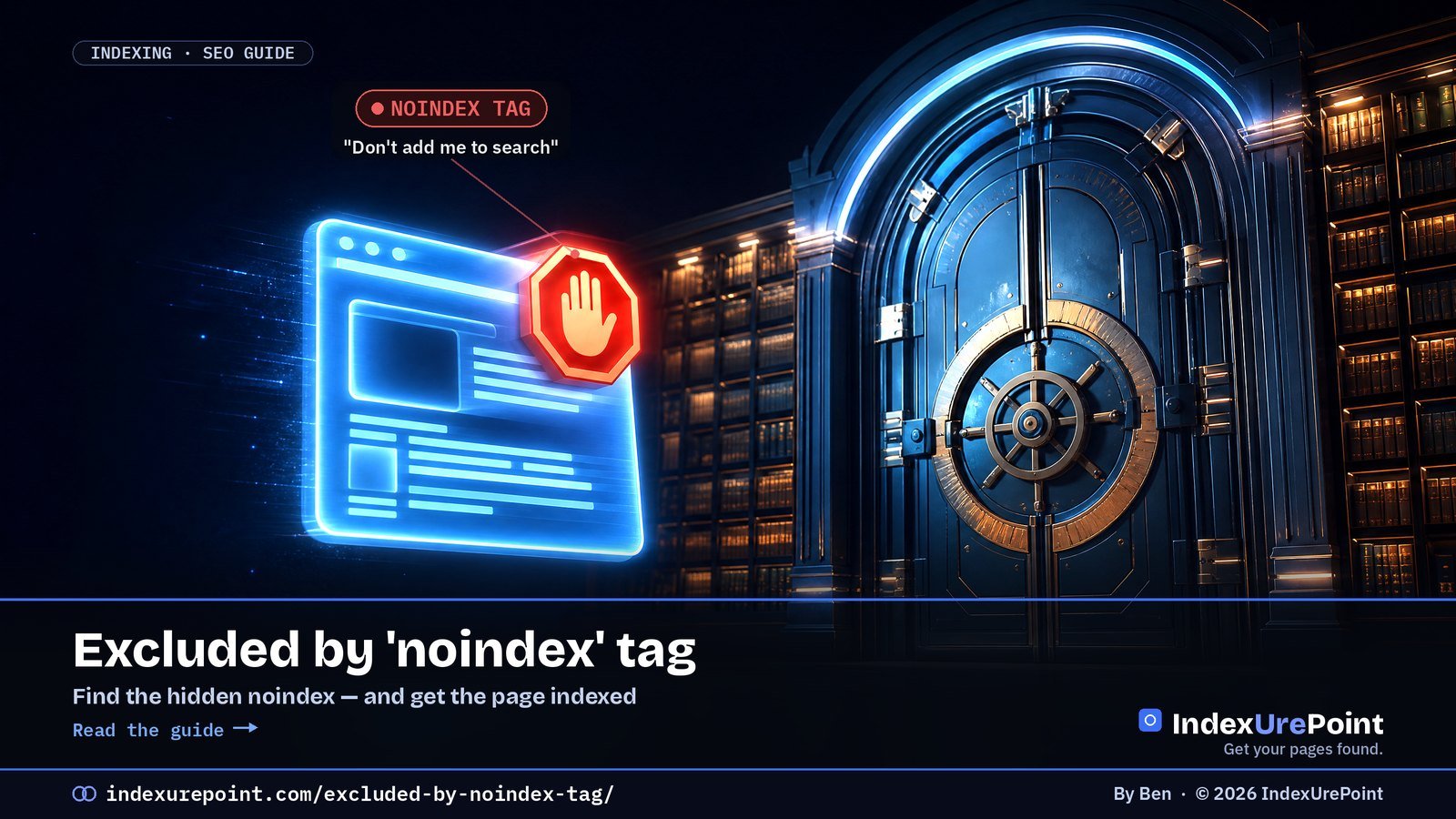
  • Soft 404 Errors: What They Are and How to Fix Them

    Soft 404 Errors: What They Are and How to Fix Them

    Lees deze gids in het Nederlands →

    Google Search Console · Page indexing

    A soft 404 is a page that returns “200 OK” to browsers but looks missing or empty to Google — so Google treats it as not found and keeps it out of the index.

    Key takeaways
    • The status code says “page exists”, the content says “nothing here” — Google believes the content.
    • Six usual causes: fake 404 pages returning 200, empty category/search pages, gutted product pages, irrelevant redirects, placeholders and failed JavaScript rendering.
    • Mass-redirecting deleted URLs to the homepage is itself treated as a soft 404 by Google.
    • The fix depends on the page: gone → real 404/410; moved → 301 to an equivalent; real page → give it real content.
    • For JavaScript sites, test the live URL in Search Console: a blank rendered screenshot means Google sees an empty page.
    How this was checked. Written against Google’s documentation on soft 404 errors and the Page indexing report.
    Short answer

    A soft 404 is a page that tells browsers “everything’s fine” (HTTP 200) but looks to Google like a missing or empty page. Google treats it as not found and won’t index it.

    The fix depends on what the page really is: gone? return a real 404 or 410. Moved? 301 to the closest equivalent. Real page? give it enough real content that it no longer looks empty.

    What a soft 404 is

    Google’s definition: the page returns a user-friendly “not found” message, but not a 404 HTTP response code. In practice Google also flags pages that are technically “found” but have so little content they might as well be missing.

    SERVER SAYS

    200 OK — page exists

    The signal: “Index me, I’m a normal page.”

    GOOGLE SEES

    Empty or “not found”

    The verdict: the status code is lying, so Google treats it as a 404.

    What the page really is Right response Wrong response
    Gone for good 404 or 410 + remove from sitemap Redirect to homepage
    Replaced by another page 301 to the closest equivalent 301 to an unrelated page
    Temporarily out of stock Keep live with full info + alternatives Strip to a “not available” line
    Real page Google sees as empty Fix rendering / add real content Request indexing repeatedly

    The six usual causes

    • Custom “not found” pages that return 200. The page says “Oops, nothing here” but the server reports success.
    • Empty category, tag or search pages. “No products found” or “No posts yet” with nothing else on the page.
    • Out-of-stock or expired items reduced to a title and a “no longer available” line.
    • Redirects to an irrelevant page — especially mass-redirecting deleted URLs to the homepage. Google often treats those as soft 404s.
    • Thin placeholder pages — “coming soon,” near-empty templates, auto-generated location pages.
    • Rendering failures. JavaScript that fails for Googlebot, or resources blocked by robots.txt, so Google renders a blank page.

    Fix it by page type

    Ask one question: should this URL exist?
    No — it’s gone or useless
    1. Gone for good? Return 404 or 410.
    2. Replaced? 301 to the closest relevant page — not the homepage.
    3. Remove it from your sitemap and internal links.
    Yes — it’s a real page
    1. Does it render fully in URL Inspection’s live test?
    2. Does it have real, unique content above the fold?
    3. Empty archive? Add content or noindex it until it fills.

    • Shops: keep temporarily out-of-stock products live with full details, alternatives and a restock note. For permanently discontinued items, 301 to the successor or category — or return 404/410.
    • JavaScript sites: use URL Inspection → Test live URL → View tested page. If the screenshot is blank, fix rendering (server-side rendering, unblocked resources) before anything else.
    • WordPress: make sure your theme’s 404 template really returns a 404 status, and noindex empty tag archives with your SEO plugin.
    Our take
    Soft 404s on pages that should be gone are fine — Google reached the right conclusion. The ones to fix are real pages Google mistook for empty. That’s almost always a content or rendering problem, not a status-code trick.

    FAQ

    Is a soft 404 bad for SEO?

    For pages that should be gone, it’s harmless but wasteful — a proper 404 or 410 is cleaner. For real pages, it’s bad: Google won’t index them until they stop looking empty.

    Should I redirect all 404s to the homepage?

    No. Google usually treats irrelevant redirects to the homepage as soft 404s. Redirect only to a genuinely equivalent page; otherwise let the URL return 404 or 410.

    What’s the difference between 404 and 410?

    Both say the page isn’t there. 410 means “gone on purpose, permanently,” which some sites use to signal removal more clearly. In practice Google handles both as not found.

    How do I get Google to recheck after fixing?

    Fix the pages, then click Validate fix on the Soft 404 issue in Search Console. Google recrawls the affected URLs; validation typically takes up to about two weeks.

    Why does Google report a soft 404 on a page that exists?

    Because the rendered page looks empty or like an error to Google: little content above the fold, a “nothing found” message, or JavaScript that fails for Googlebot.

    Do soft 404s waste crawl budget?

    They can. Googlebot keeps rechecking URLs that claim to exist. Returning a proper 404 or 410 tells it to stop, which frees attention for pages that matter.

    iP
    IndexUrePoint is an independent guide to getting your pages found and indexed — Google, Bing, and AI search. We test tools ourselves and say plainly when something doesn’t work. Spotted an error? Tell us via the contact page; we’ll fix it and note the date.

  • Blocked by robots.txt (and “Indexed, Though Blocked”): What to Do

    Blocked by robots.txt (and “Indexed, Though Blocked”): What to Do

    Lees deze gids in het Nederlands →

    Google Search Console · robots.txt

    “Blocked by robots.txt” means your robots.txt forbids Googlebot from crawling the URL — and because robots.txt controls crawling, not indexing, the blocked page can still end up in Google as a bare, description-less result.

    Key takeaways
    • robots.txt stops crawling; noindex stops indexing. Mixing them up is the most common robots mistake.
    • “Indexed, though blocked by robots.txt” happens when links point at a URL Google may not read.
    • To remove a page from Google you must allow crawling so Google can see the noindex.
    • Common accidental blocks: a leftover Disallow: / from staging, or a prefix rule that matches more than intended.
    • Rules match by prefix: Disallow: /blog also blocks /blog-tips/.
    How this was checked. Written against Google’s robots.txt documentation, the Page indexing report help, and the robots.txt report in Search Console.
    Short answer

    “Blocked by robots.txt” means your robots.txt file tells Googlebot not to crawl this URL, so Google can’t read it — and won’t index its content.

    “Indexed, though blocked by robots.txt” is the odd twin: Google indexed the URL anyway, usually because other pages link to it, but without being able to read it.

    The key rule: robots.txt controls crawling, not indexing. To keep a page out of Google, use noindex — and let Google crawl the page so it can see it.

    “Blocked by robots.txt” — what it means

    Your robots.txt (at yoursite.com/robots.txt) contains a Disallow rule that matches this URL. Googlebot obeys it and doesn’t fetch the page. For admin areas, cart pages and internal search results, that’s exactly what you want. For articles and product pages, it’s a mistake.

    Common accidental blocks: a leftover Disallow: / from a staging site, a too-broad rule like Disallow: /p that also matches /products/, or a plugin that rewrote the file.

    “Indexed, though blocked by robots.txt” — what it means

    Google can index a URL it isn’t allowed to crawl if enough links point to it. It then shows the URL with little or no description, because it never read the page. This is a warning, and it trips people up in both directions:

    YOU WANT IT INDEXED

    Unblock it

    Fix: remove the Disallow rule so Google can crawl and properly index the content.

    YOU WANT IT GONE

    Unblock + noindex

    Fix: allow crawling and add noindex. Blocked pages can’t show Google their noindex.

    Goal robots.txt noindex Right choice
    Keep a page out of Google results Unreliable Yes Allow crawling + noindex
    Save crawl budget on filters/search pages Yes No effect on crawl robots.txt Disallow
    Remove an already-indexed page Makes it worse Yes Unblock + noindex, or 404/410
    Keep AI training crawlers out Yes (per user agent) No robots.txt, see AI crawlers guide

    What do you actually want?

    • Page should rank → it must be crawlable. Remove the matching Disallow rule.
    • Page should never appear in search → allow crawling, add a noindex meta tag or X-Robots-Tag header. Once Google has dropped it, you can leave it as is.
    • Page is crawl waste (filters, internal search, endless calendars) and isn’t indexed → a robots.txt block is fine. Ignore the report for those URLs.

    How to fix both statuses

    • Open the robots.txt report in Search Console (Settings → robots.txt). It shows the version Google fetched, when, and any parse errors.
    • Find the matching rule. URL Inspection tells you a URL is blocked; compare its path with your Disallow lines. Remember that rules match by prefix.
    • Edit carefully. On WordPress, Yoast (Tools → File editor) and Rank Math let you edit robots.txt; otherwise edit the file in your site root. Never block CSS or JavaScript your pages need to render.
    • Keep the sitemap line. Add Sitemap: https://yoursite.com/sitemap_index.xml (or your sitemap’s URL) so crawlers find it.
    • Validate. Click Validate fix on the issue, or Request indexing for the key pages.
    Our take
    The number-one robots.txt mistake is using it to “hide” pages. It hides nothing — it just blinds Google. Use robots.txt to save crawl effort, and noindex to control what’s shown in search.

    Need to keep a PDF or image out of Google? Don’t block it in robots.txt — send a noindex with the X-Robots-Tag header instead.

    Not robots.txt, but a 403? If Search Console shows “Blocked due to access forbidden (403)”, the block is in your firewall or server, not in robots.txt: here’s how to fix it.

    Test your rules. Paste your robots.txt into our free robots.txt tester to see exactly which rule blocks a URL for Googlebot.

    FAQ

    Does robots.txt remove a page from Google?

    No. robots.txt only stops crawling. A blocked URL can still be indexed from links. To remove a page, allow crawling and use noindex, or delete it and return 404/410.

    Should I block AI crawlers in robots.txt?

    You can, with rules for their specific user agents, but it’s a trade-off: blocking an assistant’s crawler can keep your content out of its answers. Decide per crawler, deliberately.

    How fast does Google see robots.txt changes?

    Google generally caches robots.txt for up to about a day. The robots.txt report in Search Console shows when it was last fetched.

    Where did the robots.txt Tester go?

    Google retired the old robots.txt Tester and replaced it with the robots.txt report under Settings in Search Console. URL Inspection also shows whether a specific URL is blocked.

    Where do I find my robots.txt file?

    It always lives at the root: yoursite.com/robots.txt. In WordPress, Yoast and Rank Math include an editor for it; otherwise edit the file on your server.

    Can robots.txt hide a page from people?

    No. Anyone can open the URL directly, and the robots.txt file itself is public. Use a login or password protection for genuinely private content.

    iP
    IndexUrePoint is an independent guide to getting your pages found and indexed — Google, Bing, and AI search. We test tools ourselves and say plainly when something doesn’t work. Spotted an error? Tell us via the contact page; we’ll fix it and note the date.

  • Alternate Page With Proper Canonical Tag: Why It’s Usually Fine

    Alternate Page With Proper Canonical Tag: Why It’s Usually Fine

    Part of our guide: canonical tags and indexing, every Search Console status explained →

    Google Search Console · Canonicalization

    “Alternate page with proper canonical tag” means this URL points to another page as the main version and Google agreed — in most cases that is your canonical setup working exactly as intended.

    Key takeaways
    • This status is usually good news: the canonical page is indexed and collects the ranking signals.
    • Normal residents of this list: parameter URLs, AMP/mobile variants, product variants and syndicated copies.
    • It becomes a problem only when a unique page you want to rank appears here — then its canonical points to the wrong place.
    • A growing count usually just means Google is discovering more variants and handling them correctly.
    • Language versions belong in hreflang, not in canonicals: each language is its own canonical page.
    How this was checked. Written against Google’s Page indexing report documentation and its canonicalization guidelines.
    Short answer

    “Alternate page with proper canonical tag” is usually good news. It means this URL points to another page as the canonical, Google agreed, and the canonical page is indexed.

    In other words: your setup is working. The alternate URL isn’t indexed on purpose, and its content is represented by the canonical.

    Only act if a page listed here is a unique page you want to rank — then its canonical tag is pointing to the wrong place.

    What “Alternate page with proper canonical tag” means

    Google’s description: the page is marked as an alternate of another page and correctly points to the canonical page, which is indexed. You said “the main version lives over there,” and Google said “agreed.”

    THIS URL

    The alternate

    Status: not indexed by design. Its rel=”canonical” points elsewhere.

    THE CANONICAL

    The main version

    Status: indexed. It collects the ranking signals for both URLs.

    When it’s completely normal (most of the time)

    • Tracking and sort parameters — ?utm_source=, ?sort=price — pointing to the clean URL.
    • Separate mobile or AMP versions that point to the main page.
    • Product variants (colour, size) that canonicalize to one main product page.
    • Syndicated or republished copies that credit the original.

    In all these cases, a growing number in this report simply means Google is discovering more variants and handling them correctly. You don’t need to “fix” anything, and you don’t need to click Validate fix.

    What’s listed Is it a problem? What to do
    Tracking/sort parameter URLs No Nothing
    AMP or mobile variants No Nothing
    Product variants pointing to the main product No Nothing
    Unique articles or products you want ranked Yes Make their canonical self-referencing
    Language versions canonicalized to one language Yes Self-canonical + hreflang

    When it’s a real problem

    It’s a problem only when a URL in this list should be indexed in its own right. Typical culprits:

    • A theme or plugin bug that sets every page’s canonical to the homepage or to page 1 of a blog.
    • Copied templates where a hard-coded canonical from one page ended up on others.
    • Paginated pages (page 2, 3…) canonicalized to page 1, which hides the posts linked only from deeper pages.
    • Language versions canonicalized to one language instead of each pointing to itself and using hreflang.
    Quick test
    Scan the example URLs in the report. If they’re all parameter or variant URLs, relax. If you see real articles, product pages or language versions, open one in URL Inspection and check the “User-declared canonical.”

    How to fix a wrong canonical

    • Make unique pages self-referencing. Each page you want indexed should point its canonical at itself.
    • Find the source. Check your SEO plugin’s per-page canonical field, your theme header, and any “canonical URL” setting that was filled in by mistake.
    • Handle languages with hreflang, not canonicals. Each language version is its own canonical; hreflang links them together.
    • Then validate. After fixing, use Validate fix or URL Inspection → Request indexing for the key pages, and give Google time to recrawl.
    Our take
    This is the one “not indexed” status we’d call a health signal. If you want to worry about canonicals, look at Duplicate without user-selected canonical and Google chose different canonical than user instead.

    FAQ

    Should I fix “Alternate page with proper canonical tag”?

    Usually not. It confirms your canonical tags work. Only fix it when a unique page you want indexed appears in the list.

    Does this status hurt my SEO?

    No. The canonical page is indexed and receives the signals. It’s the intended outcome of a correct canonical setup.

    Why is the number going up?

    Google is finding more variant URLs — new parameters, filters or tracking links — and correctly folding them into their canonicals. That’s normal as a site grows.

    Should I remove these URLs with the Removals tool?

    No. The Removals tool only hides URLs temporarily and isn’t meant for canonical variants. Leave them; Google is already treating them correctly.

    What is a canonical tag?

    A rel=”canonical” link in the page head that names the main version of a page. Search engines use it as a strong hint when choosing which of several similar URLs to index.

    How do I check what a page declares as canonical?

    View the page source and search for rel=”canonical”, or inspect the URL in Search Console, which shows the user-declared and the Google-selected canonical side by side.

    iP
    IndexUrePoint is an independent guide to getting your pages found and indexed — Google, Bing, and AI search. We test tools ourselves and say plainly when something doesn’t work. Spotted an error? Tell us via the contact page; we’ll fix it and note the date.
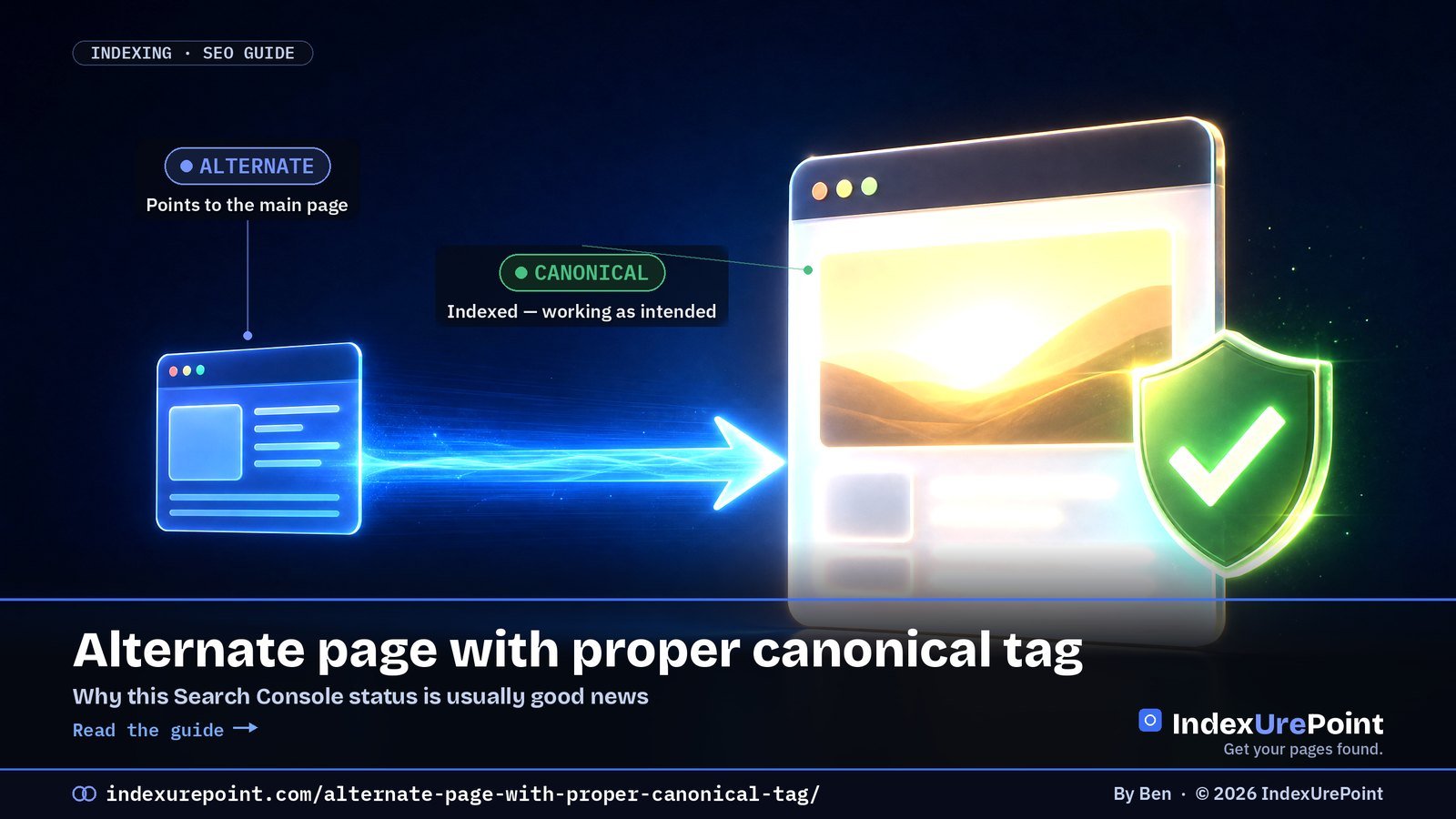
  • Duplicate Without User-Selected Canonical: What It Means and How to Fix It

    Duplicate Without User-Selected Canonical: What It Means and How to Fix It

    Part of our guide: canonical tags and indexing, every Search Console status explained →

    Google Search Console · Canonicalization

    “Duplicate without user-selected canonical” means Google found near-identical pages on your site, you never said which one is the main version, so Google picked one itself — and this URL lost.

    Key takeaways
    • This is an informational status, not an error: Google indexed the version it judged canonical.
    • The number-one cause is URL variants: parameters, http/https, www/non-www and trailing slashes.
    • The fix is alignment: a self-referencing canonical tag plus sitemap, internal links and redirects that all name the same URL.
    • Google treats rel="canonical" as a hint, not a command — conflicting signals get overridden.
    • Only act when a URL you actually want to rank is the one being set aside.
    How this was checked. Written against Google’s Page indexing report documentation and its guide to consolidating duplicate URLs.
    Short answer

    “Duplicate without user-selected canonical” means Google found this URL, decided it’s a duplicate of another page, and noticed you never said which version is the main one — so Google picked for you.

    Most of the time the fix is simple: give every important page a self-referencing canonical tag, and point duplicate variants (parameters, http/https, trailing slashes) at the one URL you want indexed.

    If the listed URLs are junk variants you never wanted in search, this status is harmless.

    What “Duplicate without user-selected canonical” means

    Google’s own wording: the page is a duplicate of another page, although it doesn’t indicate a preferred canonical page. Two things are true at once:

    GOOGLE SEES

    Two near-identical pages

    Result: it groups them and indexes only one — the canonical.

    YOU DIDN’T SAY

    No canonical declared

    Result: Google chose the winner on its own signals. This URL lost.

    It’s the “silent” sibling of Duplicate, Google chose different canonical than user. There you declared a canonical and Google disagreed; here you declared nothing at all.

    Canonical status in GSC Who declared a canonical? Google’s verdict Action
    Duplicate without user-selected canonical Nobody Google picked one itself Add self-referencing canonicals; align signals
    Google chose different canonical than user You did Google disagreed Strengthen your preferred URL; fix conflicts
    Alternate page with proper canonical tag You did Google agreed Usually none — working as intended

    The usual causes

    • URL parameters. ?utm_source=, ?sort=, ?ref= and session IDs create endless copies of one page.
    • Protocol and host variants. http vs https, www vs non-www — if both resolve without redirecting, you have twins.
    • Trailing slashes and case. /page and /page/ are different URLs to Google.
    • CMS extras. WordPress attachment pages, tag and archive pages that mirror post content, printer-friendly versions, faceted filters in shops.
    • Missing canonical tags. A theme or setup that simply doesn’t output rel=”canonical”.

    Check it in 60 seconds

    Open the URL in Search Console’s URL Inspection. Look at “User-declared canonical” and “Google-selected canonical.”
    The URL is a junk variant
    1. Google picked your real page as canonical?
    2. Then it’s working as intended.
    3. Optionally add a canonical to make it explicit.
    The URL is a page you want indexed
    1. Is it actually unique, or near-identical to the chosen URL?
    2. Does it have a self-referencing canonical?
    3. Do your internal links and sitemap point to it?

    How to fix it (in order)

    • Add self-referencing canonicals everywhere. Every indexable page should declare itself as canonical. On WordPress, Yoast SEO, Rank Math and All in One SEO do this automatically — check your page source for rel=”canonical”.
    • Redirect the obvious twins. Force one protocol and host with a 301 (https + either www or non-www) and pick one trailing-slash style.
    • Point variants at the original. Parameter and filter URLs should carry a canonical pointing to the clean URL.
    • Make your signals agree. Sitemap, canonical tags and internal links should all name the same URL. Link internally to the clean version only.
    • Make genuinely different pages different. If two pages are “duplicates” because they share 90% of their text, rewrite or merge them — a canonical tag can’t make thin twins unique.
    Our take
    Don’t chase a zero count. Big sites always have duplicate variants, and this report listing them means Google handled them. Only act when a URL you want in search is the one being set aside.

    FAQ

    Is “Duplicate without user-selected canonical” an error?

    No. It’s an informational status explaining why a URL isn’t indexed. It only needs action if the URL is a page you want to rank.

    What’s the difference with “Alternate page with proper canonical tag”?

    With “Alternate page with proper canonical tag” you declared a canonical and Google agreed. With “Duplicate without user-selected canonical” you declared none, so Google chose. See our guide to Alternate page with proper canonical tag.

    Should I click “Validate fix”?

    Only after you’ve changed something, such as adding canonicals or redirects. Validation makes Google recrawl the affected URLs, which typically takes up to about two weeks.

    Will adding canonical tags get the page indexed?

    Canonical tags tell Google which version you prefer; they’re a strong hint, not a command. If the page is unique and useful and your other signals agree, Google usually follows them.

    Do URL parameters always cause duplicate content?

    Tracking and sorting parameters create duplicate URLs, not duplicate content penalties. Google folds them into a canonical; your job is making sure it folds them into the right one.

    Can I see which canonical Google chose?

    Yes. URL Inspection in Search Console shows both the user-declared canonical and the Google-selected canonical for any URL on your verified site.

    iP
    IndexUrePoint is an independent guide to getting your pages found and indexed — Google, Bing, and AI search. We test tools ourselves and say plainly when something doesn’t work. Spotted an error? Tell us via the contact page; we’ll fix it and note the date.

  • What Is IndexNow? Instant Indexing for Bing (and Why Not Google)

    What Is IndexNow? Instant Indexing for Bing (and Why Not Google)

    Lees deze gids in het Nederlands →

    Bing · IndexNow · Indexing speed

    IndexNow is a free, open protocol that lets your site tell Bing, Yandex, Naver, Seznam, Yep and Amazon the moment a URL is added, updated or deleted — one ping reaches them all, and Google is the one engine that does not participate.

    Key takeaways
    • Push beats pull: engines learn about changes in seconds instead of on their next crawl.
    • Scale is real: Microsoft reported 1.4 billion URLs submitted daily and 17% of newly clicked URLs in Bing arriving via IndexNow.
    • Setup on WordPress is one plugin; the key file is generated and hosted for you.
    • It is a notification, not a guarantee: a thin page pinged a hundred times is still a thin page.
    • Because Bing’s index feeds Copilot and much of ChatGPT search, faster in Bing can mean faster in AI answers.
    How this was checked. Written against the official IndexNow documentation (indexnow.org) and Bing Webmaster guidance, and tested on this very site: IndexUrePoint runs the official IndexNow plugin, and every page you’re reading was submitted with it.
    Short answer

    IndexNow is a free, open protocol that lets your site tell search engines the moment a URL is added, updated or deleted — instead of waiting for them to notice on their next crawl.

    One ping reaches every participating engine: Bing, Yandex, Naver, Seznam.cz, Yep and Amazon share submissions with each other.

    Google does not use IndexNow. For Google you still rely on your sitemap, internal links and Search Console. IndexNow is a fast lane for everything else — including Bing, whose index feeds Microsoft Copilot.

    How IndexNow works — push instead of pull

    Classic crawling is pull: a search engine visits your site on its own schedule and discovers changes eventually. IndexNow flips that to push: when you publish or update a page, your site sends a tiny notification containing the URL and a key that proves you own the site.

    WITHOUT INDEXNOW

    Wait to be noticed

    What happens: engines find changes on their next crawl — hours, days or weeks later, depending on how often they visit.

    WITH INDEXNOW

    Tell them instantly

    What happens: the engine learns about the change within seconds and can prioritise a crawl. One submission is shared with all participants.

    Important nuance: IndexNow is a notification, not a guarantee. It gets your URL in front of the crawler fast; whether the page is indexed still depends on quality — exactly as with Google. A thin page pinged a hundred times is still a thin page.

    Who uses IndexNow — and who doesn’t

    • Participating: Microsoft Bing, Yandex, Naver, Seznam.cz, Yep and Amazon (IndexNow FAQ); by 2023 over 60 million websites were using the protocol (Wikipedia). Submit to any one endpoint and the URL is shared with the others.
    • Not participating: Google. Google tested the protocol years ago but still relies on its own crawling, sitemaps and Search Console. Don’t let anyone tell you IndexNow speeds up Google indexing.
    • Why it still matters in 2026: Bing’s index powers Bing search and Microsoft Copilot, and it’s one of the web indexes AI assistants draw on. Faster in Bing can mean faster in AI answers — see how to get cited in AI search.
    IndexNow Google Indexing API Sitemap
    Engines Bing, Yandex, Naver, Seznam, Yep, Amazon Google only All
    Allowed content Any page Job postings & livestreams only Any page
    Speed Seconds to notify Fast, but restricted Next crawl
    Risk None when used as intended Spam warning on misuse None

    Set up IndexNow in 5 minutes

    On WordPress (easiest)

    • Official plugin: install IndexNow (by Microsoft Bing) from Plugins → Add New. It generates the key, hosts the key file and automatically submits every new, updated or deleted post. That’s what this site uses.
    • Or your SEO plugin: Rank Math (Instant Indexing module), All in One SEO and Yoast SEO Premium include IndexNow support. Use one method, not several, to avoid duplicate pings.
    • On Cloudflare? Its Crawler Hints feature can send IndexNow signals for you.

    Any other site (manual)

    • Create a key of 8–128 characters (letters, numbers, hyphens).
    • Host it as a text file named {your-key}.txt in your site root, containing the key.
    • Submit changed URLs to api.indexnow.org/indexnow — one URL via a GET request, or up to 10,000 URLs in a single JSON POST.
    Check that it works
    Add your site to Bing Webmaster Tools. Its IndexNow section shows which URLs were received and when — the fastest way to confirm your setup is live.

    Rules that keep you out of trouble

    • Only submit real changes. New pages, meaningful updates and deletions. Re-pinging unchanged URLs wastes your quota and signals nothing.
    • Keep the key file reachable. If a security plugin or firewall blocks it, every submission fails verification.
    • Don’t replace the basics. IndexNow complements your XML sitemap and internal links — it doesn’t replace them. Bing still uses both.
    • Deleted a page? Submit it too, so engines drop it faster instead of showing a dead result.
    Our take
    IndexNow is the rare SEO tactic that’s free, official and zero-risk. Turn it on and forget it. Just don’t confuse it with Google: for Google, the path is still allowed → reachable → worth keeping.

    FAQ

    Does IndexNow work for Google?

    No. Google does not participate in IndexNow. For Google, use an XML sitemap, strong internal links and — sparingly — URL Inspection’s “Request indexing” in Search Console.

    Is IndexNow free?

    Yes. The protocol is open and free. The official WordPress plugin is free, and submitting URLs to the API costs nothing.

    How fast does Bing index a page after an IndexNow ping?

    Bing usually receives the notification within seconds and can crawl soon after, but there’s no guaranteed timeframe. Whether it indexes the page still depends on the page’s quality and your site’s trust.

    Can IndexNow hurt my site?

    Not when used as intended. Submitting only new, updated or deleted URLs is exactly what it’s for. The only “risk” is wasted effort from spamming unchanged URLs.

    Do I need IndexNow if I already have a sitemap?

    You don’t need it, but it helps. A sitemap waits to be read; IndexNow announces changes immediately. Use both.

    Which engines share IndexNow submissions?

    Submitting to any participating endpoint shares the URL with all others: Microsoft Bing, Yandex, Naver, Seznam.cz, Yep and Amazon, per the IndexNow FAQ.

    How many URLs can I submit via IndexNow?

    Up to 10,000 URLs per POST request; the engines set their own daily thresholds. Normal sites never get near the limits.

    iP
    IndexUrePoint is an independent guide to getting your pages found and indexed — Google, Bing, and AI search. We test tools ourselves and say plainly when something doesn’t work. Spotted an error? Tell us via the contact page; we’ll fix it and note the date.
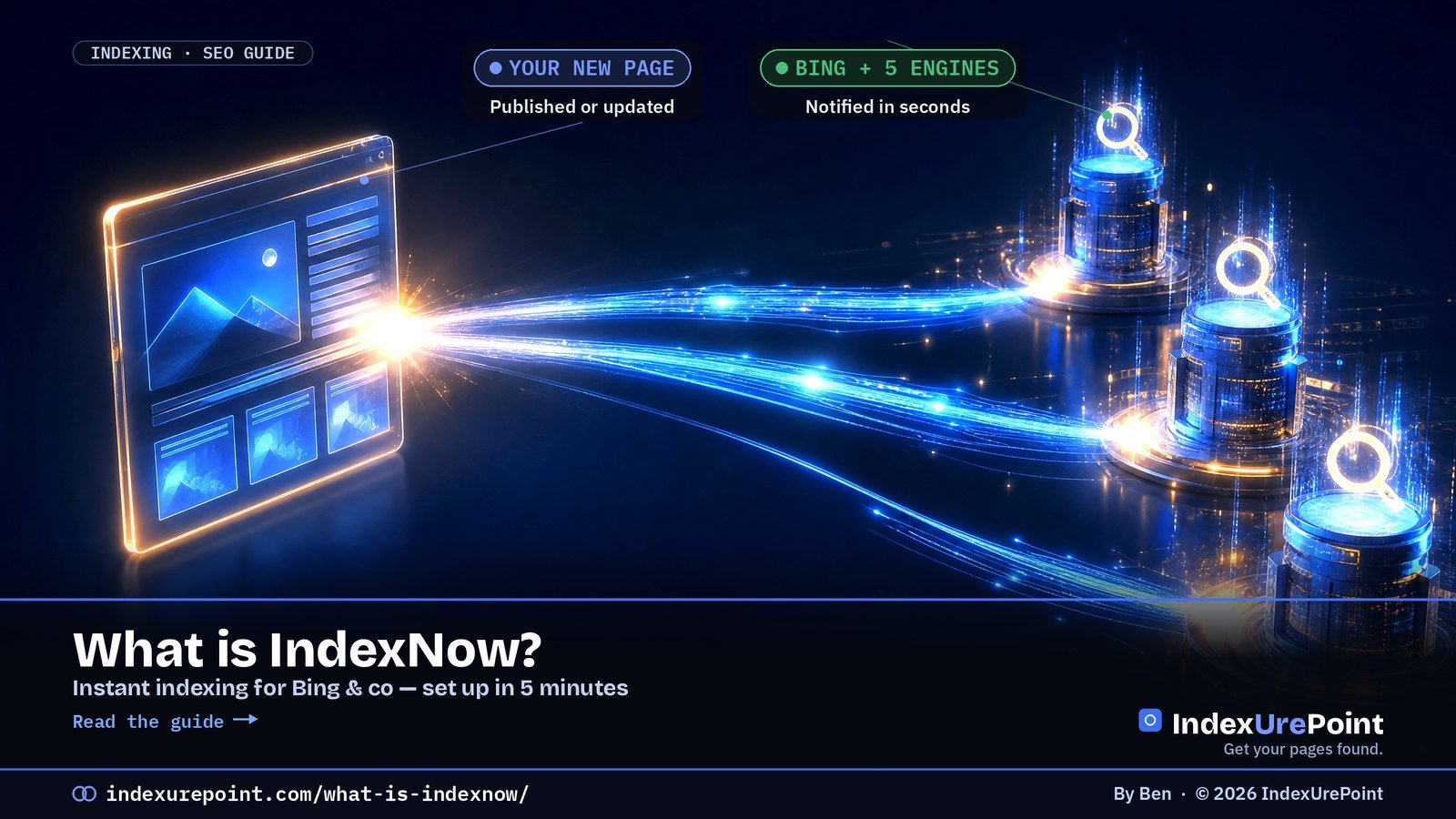
  • How to Get Cited by AI Search: What the Data Shows (2026)

    How to Get Cited by AI Search: What the Data Shows (2026)

    Lees deze gids in het Nederlands →

    AI Search · Citations in 2026

    How do you get cited by AI search? Make sure AI crawlers can index the page, then write the clearest sourced answer to one specific question: AI Overviews, ChatGPT, Copilot and Perplexity only cite pages they can find in their index, and in tests sourced statistics and quotations raised visibility by up to 40%.

    Key takeaways
    • There is no submission form. Google says AI Overviews and AI Mode have no additional requirements beyond being indexed and eligible for a snippet.
    • In the GEO study (Princeton and IIT Delhi, KDD 2024), adding citations, quotations and statistics raised a page’s visibility in generative answers by up to 40%.
    • Ranking in the top 10 is no longer a guarantee: Ahrefs found that only 37.9% of URLs cited in AI Overviews also appeared in the first 10 results (863,000 SERPs).
    • Brand mentions on the web correlate more strongly with AI Overview visibility (0.664) than links or Domain Rating, across 75,000 brands.
    • Each assistant has its own search crawler: OAI-SearchBot (ChatGPT), Claude-SearchBot (Claude), PerplexityBot and Bingbot (Copilot). Block one and you disappear from that assistant’s answers.
    • Bing Webmaster Tools is the only free dashboard that counts AI citations directly; Google folds AI traffic into the normal Performance report.
    How this was checked. We re-read every rule and number on this page on 17 October 2026 at its source. That means Google’s AI features documentation (last updated 10 December 2025), the crawler pages of OpenAI, Perplexity and Anthropic, Microsoft’s Bing Webmaster blog, and the three studies cited, read on the study pages themselves. Statistics are quoted with their sample size; we flag the small ones.
    Short answer

    You can’t “submit” a page to AI Overviews, ChatGPT or Perplexity. They cite pages that are already indexable, trusted and easy to quote.

    So: let the search crawlers in, get indexed in both Google and Bing, then answer one question per section in the first two sentences, with a number and a named source. That is what the research measured, and it is the same work that makes a page rank.

    How does AI search decide which pages to cite?

    AI search tools answer from pages they retrieved from a search index, then cite the pages they used. Google is explicit that AI Overviews and AI Mode draw on pages that are indexed and eligible to be shown in Google Search with a snippet. ChatGPT search, Microsoft Copilot and Perplexity work the same way with their own crawlers and indexes.

    That gives two filters. First, retrieval: can the system find your page for the question? That is classic indexing, covered in our indexing diagnosis. Second, selection: among the retrieved pages, which one contains a sentence the model can lift with confidence? That is where writing and evidence decide.

    GETS CITED

    Quotable & sourced

    Looks like: a direct answer under a question heading, a specific number with its source, a named author or brand, a table.

    GETS SKIPPED

    Vague & buried

    Looks like: a long intro, the answer three scrolls down, claims without sources, a page that isn’t even indexed.

    What does the research say gets pages cited by AI?

    Three findings hold up, each from a study you can check yourself. None of them is a ranking formula; together they show where the levers are.

    40%maximum visibility gain in generative answers from GEO methods — Aggarwal et al., GEO, KDD 2024
    37.9%of URLs cited in AI Overviews also rank in Google’s top 10 (863K SERPs, ~4M cited URLs) — Ahrefs, March 2026
    0.664correlation between branded web mentions and AI Overview brand visibility (75,000 brands) — Ahrefs, May 2025
    87%of SearchGPT citations matched Bing’s top results, 56% Google’s (~100 queries) — Seer Interactive, Feb 2025

    Sources, quotes and statistics raise visibility

    The GEO paper by researchers at Princeton and IIT Delhi tested nine ways of rewriting a page on GEO-bench, a benchmark of 10,000 queries, and measured how much of the generated answer came from that page. Its abstract reports that GEO can boost visibility by up to 40%. In the paper itself the three best methods are Cite Sources, Quotation Addition and Statistics Addition, which gave a 30–40% relative improvement on its word-count metric and 15–30% on its impression metric. Keyword stuffing, the old SEO reflex, did not perform well.

    A top-10 ranking helps, but no longer decides

    Ahrefs analysed 863,000 keyword SERPs and about 4 million AI Overview URLs and found that 37.9% of cited URLs also appeared in the first 10 results. An earlier Ahrefs study had put the overlap near 76%; Ahrefs says its parsing changed, so the two numbers are not directly comparable. The practical lesson: pages beyond page one do get cited, if they answer the sub-question precisely.

    Mentions of your brand matter more than links

    Across 75,000 brands, Ahrefs found that branded web mentions had the strongest correlation (0.664) with being mentioned in AI Overviews, ahead of branded anchors (0.527), branded search volume (0.392) and Domain Rating (0.326). It is a correlation, not proof of cause, but it points the same way as the GEO paper: being talked about and quoted elsewhere is part of the signal.

    ChatGPT leans on Bing’s results

    Seer Interactive compared ChatGPT search citations with Bing and Google results for the same questions: 87% matched Bing’s top results, 56% Google’s. The authors call it a limited sample (about 100 queries, 500+ citations, early 2025), so treat it as a direction, not a law. The direction is clear enough: if Bing can’t index you, you are missing from a large share of ChatGPT answers. Our Bing Webmaster Tools guide covers the setup.

    Which crawler feeds which AI answer?

    Every assistant separates the crawler that powers its search answers from the one that collects training data. You can allow the first and block the second; blocking the search crawler removes you from that assistant’s citations.

    AI surface Search / citation crawler Training crawler or token Fetches on user request
    Google AI Overviews, AI Mode Googlebot (normal Search index) Google-Extended (token; no effect on Search) —
    ChatGPT search OAI-SearchBot GPTBot ChatGPT-User
    Claude Claude-SearchBot ClaudeBot Claude-User
    Perplexity PerplexityBot (not used for training) — Perplexity-User
    Microsoft Copilot, Bing AI summaries Bingbot (Bing index) — —

    OpenAI puts the consequence in one sentence: sites that opt out of OAI-SearchBot will not be shown in ChatGPT search answers, though they can still appear as navigational links. Note that the user-request fetchers (ChatGPT-User, Perplexity-User) may not follow robots.txt rules, according to their own documentation. The full robots.txt setup is in AI crawlers and robots.txt, and our Googlebot guide explains what Google-Extended does and doesn’t control.

    How do you get cited by AI search, step by step?

    1. Let the search crawlers in. Allow Googlebot, Bingbot, OAI-SearchBot, Claude-SearchBot and PerplexityBot in robots.txt and in your firewall. Decide separately about training crawlers.
    2. Get indexed in Google and Bing. No index, no citation. Fix crawled or discovered — not indexed first, and push new URLs to Bing with IndexNow.
    3. Answer in the first two sentences. Put the question in the heading and the answer directly under it, complete enough to stand on its own when quoted.
    4. Add a number and a source to every key claim. This is the Statistics Addition and Cite Sources effect from the GEO paper. Link the primary source, not a summary of it.
    5. Quote a named expert or document. Quotation Addition was the other top method. A short, attributed quote from official documentation counts.
    6. Structure for extraction. One topic per section, short paragraphs, comparison tables, a FAQ in plain question form. Keep the important text in the HTML, not behind scripts or tabs that need clicks.
    7. Keep snippets allowed. Google uses nosnippet, data-nosnippet, max-snippet and noindex to control what AI features may show. A restrictive max-snippet limits what can be quoted.
    8. Get mentioned elsewhere. Original data, a free tool or a clear opinion earns the brand mentions that correlate with AI visibility. Answer engine and generative engine optimization are mostly this; see AEO vs GEO.
    9. Keep it current. Put a visible update date on the page and change it only when the content changes.
    Our take
    Don’t chase “AI ranking hacks”. Every lever that the studies measured — sources, quotes, numbers, being indexed, being mentioned — also makes a page better for people. Anyone selling “guaranteed AI citations” is selling the same thing as “guaranteed #1 on Google”.

    How do you measure whether AI cites you?

    • Bing Webmaster Tools → AI Performance. Since the public preview of February 2026 it counts citations in Microsoft Copilot, AI summaries in Bing and select partner integrations: total citations, cited pages, grounding queries and trends. In October 2026 Microsoft added Topics Portfolio, which groups those grounding queries into themes.
    • Google Search Console. There is no separate AI report filter: Google says AI Overview and AI Mode traffic is counted in the Performance report within the “Web” search type. What Search Console does show about AI features is explained in the Generative AI report explained.
    • Referral traffic. In your analytics, watch visits from chatgpt.com, perplexity.ai, claude.ai and copilot.microsoft.com.
    • Manual spot checks. Ask your target questions in each assistant once a month and note who is cited. Keep the prompts identical so the trend means something.

    What doesn’t get you cited?

    • An llms.txt file. Google says you don’t need new machine-readable files, AI text files or markup to appear in its AI features. It is optional housekeeping at best; details in what llms.txt does and doesn’t do.
    • Keyword stuffing. It was one of the methods that did not help in the GEO tests.
    • Special “AI schema”. Google lists no special markup for AI Overviews. Normal structured data still helps Google understand the page; it is not a citation switch.
    • Blocking every AI crawler and still expecting citations. You can’t have both; choose per crawler.

    FAQ

    How do I get my website cited by AI?

    Let the AI search crawlers in, get indexed in Google and Bing, and answer each question in the first two sentences with a specific number and a linked source. In the GEO study, citations, quotes and statistics raised visibility in AI answers by up to 40%.

    Can I submit my site to ChatGPT or Perplexity?

    No. They don’t take submissions. ChatGPT search uses OAI-SearchBot and leans heavily on Bing’s results; Perplexity uses PerplexityBot. Being crawlable and indexed is the only entry point.

    Do AI Overviews use the normal Google index?

    Yes. Google says a page must be indexed and eligible for a snippet, with no additional requirements and no special optimization, to appear in AI Overviews or AI Mode.

    Do I need to rank in the top 10 to be cited in AI Overviews?

    No. In Ahrefs’ 2026 study only 37.9% of URLs cited in AI Overviews were also in the top 10 results. A precise answer to a sub-question can be cited from further down.

    Will blocking GPTBot remove me from ChatGPT search?

    No. GPTBot is OpenAI’s training crawler. ChatGPT search uses OAI-SearchBot; only blocking that one keeps you out of ChatGPT search answers.

    How long does it take to get cited by AI search?

    There is no fixed timeline. A page first has to be crawled and indexed, then retrieved for the question. Pushing new URLs to Bing with IndexNow shortens the first step for Bing and Copilot; Google has no equivalent push, so there you rely on sitemaps and internal links.

    How do I see if Copilot or ChatGPT cites my pages?

    For Copilot and Bing’s AI summaries, use the AI Performance report in Bing Webmaster Tools. For ChatGPT, Claude and Perplexity there is no official dashboard: check referral traffic and spot-check your target questions by hand.

    Is AEO or GEO different from SEO?

    Mostly it is SEO with more weight on quotable answers, sources and brand mentions. The foundation — crawlable, indexed, useful pages — is the same.

    iP
    IndexUrePoint is an independent guide to getting your pages found and indexed — Google, Bing, and AI search. We test tools ourselves and say plainly when something doesn’t work. Spotted an error? Tell us via the contact page; we’ll fix it and note the date.

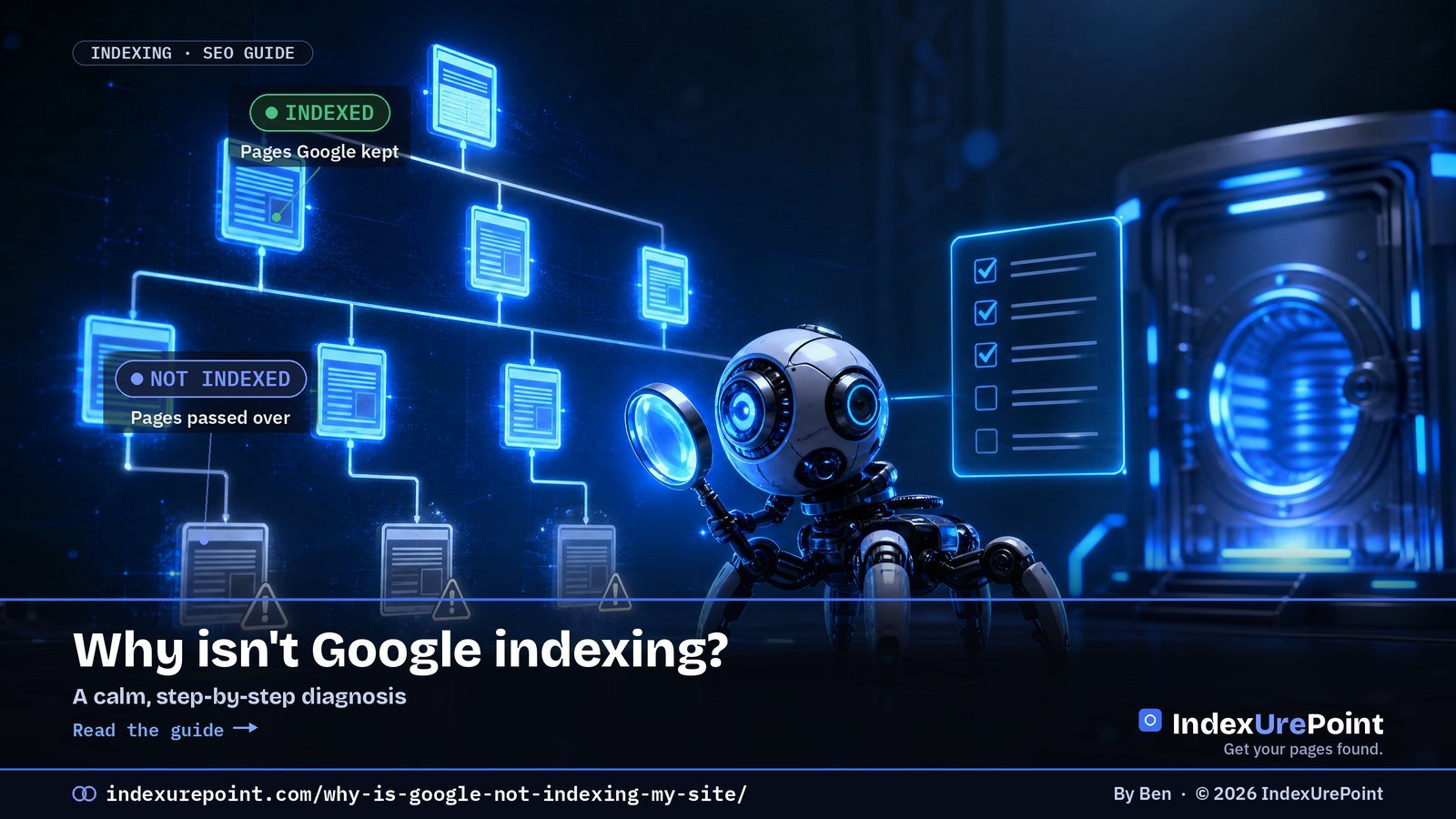
  • Why Isn’t Google Indexing My Site? A Step-by-Step Diagnosis

    Why Isn’t Google Indexing My Site? A Step-by-Step Diagnosis

    Nederlands: Website aanmelden bij Google →

    2026: also see How to get cited in AI search →

    Google Search Console · Indexing

    A page stays out of Google for one of three reasons: Google has not found it, found it but has not crawled it, or crawled it and decided not to keep it — work through allowed → reachable → worth keeping, in that order.

    Key takeaways
    • Step 1 — allowed: rule out noindex, robots.txt blocks, “Discourage search engines” and stray canonicals first; they are the fastest fixes.
    • Step 2 — reachable: orphan pages and missing sitemap entries are the classic discovery killers.
    • Step 3 — worth keeping: persistent “Crawled – currently not indexed” on a healthy site is a quality judgement, not a glitch.
    • Your exact Search Console status tells you which stage you are stuck at — match the label to the fix.
    • Most “not indexed” panic on young sites is just time: Google says indexing can take days to weeks.
    How this was checked. Written against Google’s Search Central documentation and cross-checked with real practitioner threads on r/SEO, r/bigseo and r/TechSEO. This is the hub; each step links to a deeper guide where it helps.
    Short answer

    A page isn’t indexed for one of three reasons: Google hasn’t found it, found it but hasn’t crawled it, or crawled it and decided not to keep it.

    Work top to bottom: first make sure the page is allowed and reachable, then make it worth keeping. Most “not indexed” panic is really a young site that just needs time.

    1. Is the page even allowed to be indexed?

    Before anything else, rule out the settings that tell Google to stay away. These are the fastest, most common fixes:

    • A stray noindex tag (meta robots or the X-Robots-Tag HTTP header). This alone blocks indexing entirely — check the page source and response headers.
    • Blocked in robots.txt. Blocking crawl means Google can’t read the page to index it. Confirm the URL isn’t disallowed.
    • The whole site is set to “Discourage search engines” (WordPress → Settings → Reading). Easy to leave on after launch.
    • A canonical pointing elsewhere. If the page defers to another URL, Google indexes that one instead. We cover this in depth in Duplicate, Google chose different canonical than user.

    2. Can Google find and reach the page?

    If the page is allowed but still absent, the issue is discovery or crawling — not quality. Check:

    • Internal links. Orphan pages (nothing links to them) are the classic cause. Link the page from strong, already-indexed pages.
    • Sitemap. The URL should be in your XML sitemap, and the sitemap submitted in Search Console.
    • Click depth and server health. Pages buried deep, or served slowly / with 5xx errors, get crawled last.
    If GSC says “Discovered – currently not indexed”
    That’s this exact stage: found, not fetched. The fix is links and crawl priority, not content. Full playbook in Crawled vs. Discovered — currently not indexed.

    3. Is the page worth keeping?

    If Google has crawled the page and still won’t index it, this is a value judgement. Be honest with yourself:

    • Is it substantially unique, or a near-duplicate of something you (or others) already published?
    • Does it answer a real query better than what currently ranks?
    • Is it thin? Consolidate several weak pages into one strong one and redirect.

    Persistent “crawled – not indexed” on a healthy site is usually Google’s read on content quality or domain authority — not a technical glitch. The fix is making the page genuinely worth a spot.

    GSC status Stage Guide
    Excluded by noindex / Blocked by robots.txt Not allowed noindex · robots.txt
    Discovered – currently not indexed Not fetched Crawled vs. Discovered
    Crawled – currently not indexed Fetched, not kept Crawled vs. Discovered
    Duplicate / canonical statuses Kept — as another URL Duplicates · Canonical choice
    Soft 404 / Page with redirect Looks absent Soft 404 · Redirects

    Read your exact Search Console status

    Search Console tells you which stage you’re stuck at — match the label to the fix (full list in Google’s Page indexing documentation):

    DISCOVERED

    Found, not fetched

    Discovery/priority problem. See the full guide.

    CRAWLED

    Fetched, not kept

    Value problem. Improve the page, then let Google recrawl.

    Brand-new site and everything’s slow? That’s often normal — see how long Google takes to index before you worry.

    Other statuses you might see

    Seeing a 403 or 401 in the report? That means Googlebot was refused at the door — usually by a firewall or bot filter. See blocked due to access forbidden (403).

    Seeing a duplicate or canonical status? Our guide to canonical tags and indexing explains every one of them.

    FAQ

    Google indexed my old pages but not new ones. Why?

    Usually discovery or crawl priority: the new pages aren’t linked strongly yet, or the site’s crawl budget is spent elsewhere. Add internal links from established pages and make sure they’re in your sitemap.

    I requested indexing days ago and nothing happened.

    “Request indexing” queues the URL; it doesn’t force it. If the page is allowed, reachable, and worth keeping, it’ll come. If it stays out past a few weeks on an established site, revisit steps 1–3.

    Does Google index every page of a site?

    No, and it shouldn’t. Thin, duplicate, or utility pages are often deliberately left out. Focus indexing effort on the pages that deserve to rank.

    Will paid indexing services fix this?

    Rarely and not durably. They mostly help get backlinks discovered, not your own pages accepted. If Google crawled and declined a page, pinging it again changes nothing — fix the cause.

    What should I check first when a page is not indexed?

    The cheap switches: a noindex tag, a robots.txt block, WordPress’s “Discourage search engines” setting and the canonical. Only then look at links and content quality.

    Is paying for indexing services a shortcut?

    For your own pages, no: if Google crawled and declined a page, pinging it again changes nothing. Fix the reason it was declined.

    iP
    IndexUrePoint is an independent guide to getting your pages found and indexed — Google, Bing, and AI search. We test tools ourselves and say plainly when something doesn’t work. Spotted an error? Tell us via the contact page; we’ll fix it and note the date.
  • How Long Does Google Take to Index a Page? (Realistic Timeframes)

    How Long Does Google Take to Index a Page? (Realistic Timeframes)

    Lees deze gids in het Nederlands →

    New here? Start with Why isn’t Google indexing my site? →

    Related: Crawled vs. Discovered →

    Google Search Console · Indexing speed

    On an established, healthy site a new, internally linked page is usually indexed within a few hours to about a week; on a brand-new domain, expect days to several weeks — there is no fixed timer, only trust, links and quality.

    Key takeaways
    • Indexing is three stages — discover, crawl, index — and the wait can happen at any of them.
    • Google’s own guidance: crawling and indexing “can take anywhere from a few days to a few weeks.”
    • The most reliable accelerator is an internal link from a strong, already-indexed page.
    • “Request indexing” queues a URL once; practitioners note the ~10/day limit and that repeat submissions change nothing.
    • Worry only when a well-linked, valuable page on an established site stays out past 3–4 weeks.
    How this was checked. Written against Google’s Search Central guidance on crawling and indexing and cross-checked with real practitioner reports on r/SEO and r/TechSEO. Timeframes are typical ranges, not guarantees — we say plainly where “it depends.”
    Short answer

    On an established, healthy site, a new page that’s linked internally is usually indexed within a few hours to about a week.

    On a brand-new domain, expect days to several weeks — sometimes longer — while Google learns to trust the site.

    There’s no fixed timer. Google indexes a page when it has crawled it and decided it’s worth keeping. Speed follows trust, links, and quality — not the clock.

    The three stages — and where the time actually goes

    “Indexing” isn’t one step. A page moves through three, and the wait can happen at any of them:

    1 · DISCOVER

    Google finds the URL

    The wait here: hours to days. Speed up with a sitemap and internal links from pages Google already crawls.

    2 · CRAWL

    Googlebot fetches it

    The wait here: hours to weeks, set by crawl budget and priority. Fast, error-free servers help.

    The third stage — index — is where Google decides whether the fetched page is worth keeping. A thin or duplicate page can be crawled quickly and still never make it in. That’s a quality decision, not a speed one.

    Typical timeframes (what “normal” looks like)

    • Established site, well-linked page: a few hours to ~1 week.
    • Established site, weakly-linked or deep page: 1–4 weeks.
    • Brand-new domain: days to several weeks for the first pages, faster once the site earns trust.
    • Thin, duplicate, or low-value page: may never index, regardless of time. Fix the page, not the wait.
    The honest caveat
    Anyone promising an exact number is guessing. Google’s own line is that crawling and indexing “can take anywhere from a few days to a few weeks,” and it depends heavily on the site. Treat ranges as expectations, not deadlines.
    Situation Typical time to indexed Main lever
    Established site, well-linked page Hours to ~1 week Keep doing what works
    Established site, deep or weakly linked page 1–4 weeks Internal links, click depth
    Brand-new domain Days to several weeks Publish + earn links, patience
    Thin or duplicate page Possibly never Improve or consolidate content

    How to get indexed faster (the levers that actually move it)

    • Link the new page internally from strong, already-indexed pages. This is the single most reliable accelerator — it pulls the URL into the crawl queue.
    • Keep it in your sitemap and make sure the sitemap is submitted in Search Console.
    • Use URL Inspection → Request indexing once, for a genuinely ready page. Once — not daily.
    • Fix crawl waste. If Googlebot burns budget on parameter URLs, redirects, or 5xx errors, your good pages wait longer.
    • For Bing, use IndexNow. It notifies Bing and other engines the moment you publish — see what IndexNow is. (Google doesn’t use it.)
    • Make the page worth keeping. Unique, useful content indexes faster and stays indexed. Speed is downstream of quality.

    When to actually worry

    Worry when a well-linked, high-value page on an established site stays unindexed past 3–4 weeks. Before then, on a young domain especially, waiting is the correct move. Panic-submitting the same URL every day does nothing but raise your blood pressure. Check the status in Search Console: if it says Discovered, it’s a discovery/priority issue; if it says Crawled – currently not indexed, it’s a value issue.

    Crawling comes first. Before Google can index a page it has to fetch it — see how often Google crawls a site, with real Crawl Stats from this site.

    FAQ

    Does “Request indexing” make it instant?

    No. It moves the URL higher in the crawl queue, but Google still decides when to crawl and whether to index. It often helps within hours to days for a ready page; it does nothing for a thin one.

    Why is my brand-new site taking so long?

    New domains have little trust and few links, so Google crawls cautiously. Keep publishing useful pages and earning links; indexing speed improves as the site proves itself. Several weeks early on is normal.

    My page was indexed, then disappeared. Why?

    Google re-evaluates over time. A page can be dropped if it’s judged thin, duplicate, or lower-value than alternatives. Improve and strengthen it, then let Google recrawl.

    Does publishing more often speed up indexing?

    Indirectly. A site that regularly publishes useful content tends to get crawled more frequently — but frequency without quality doesn’t help. Consistency plus value is what earns faster crawls.

    Does Google index faster at certain times?

    No credible evidence supports publish-time tricks. Crawl frequency follows your site’s trust, health and update pattern, not the clock or day of the week.

    Do social media shares speed up indexing?

    Indirectly at best. Most social links are nofollow; the reliable path stays internal links, a sitemap and, for Bing, IndexNow.

    iP
    IndexUrePoint is an independent guide to getting your pages found and indexed — Google, Bing, and AI search. We test tools ourselves and say plainly when something doesn’t work. Spotted an error? Tell us via the contact page; we’ll fix it and note the date.