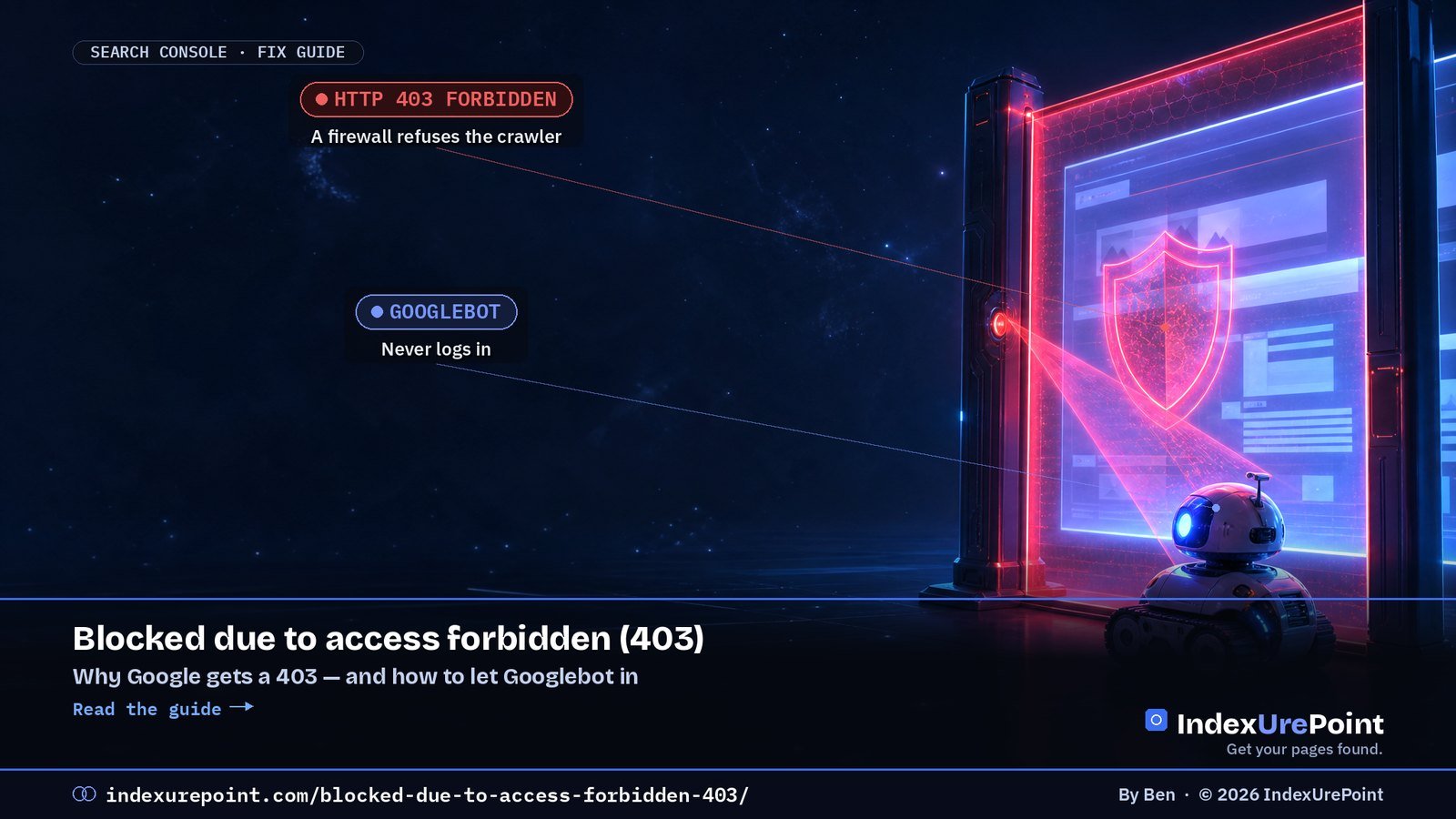
“Blocked due to access forbidden (403)” means your server refused Googlebot with an HTTP 403. Since Googlebot never logs in, Google says the server “is returning this error incorrectly” — usually because a firewall, CDN bot protection or security plugin mistook Googlebot for a bad bot.
- A 403 on a page you want in Google is always a configuration problem: Google won’t index a page it can’t fetch.
- The most common cause is security tooling — a WAF, CDN bot filter, hosting firewall or WordPress security plugin — not file permissions.
- Testing with a fake Googlebot user agent can mislead you: in our test, the hosting CDN blocked spoofed AI-crawler user agents while letting the real crawlers through.
- The fix: allow verified Googlebot (reverse DNS or Google’s IP lists), then run a live test in URL Inspection.
- 401 is the sibling status: the page asks for a login. Remove the login or keep the page out of the sitemap.
What does “Blocked due to access forbidden (403)” mean?
What causes it?
Our test: why a fake Googlebot can fool you
How do you fix it?
What about “Blocked due to unauthorized request (401)”?
When can you ignore it?
FAQ
What does “Blocked due to access forbidden (403)” mean?
It’s one of the “why pages aren’t indexed” reasons in Search Console’s Page indexing report. Google’s definition is short and blunt:
“HTTP 403 means that the user agent provided credentials, but was not granted access. However, Googlebot never provides credentials, so your server is returning this error incorrectly. The page will not be indexed.” — Google Search Console Help
In other words: a human in a browser can probably see the page, but when Googlebot asks for it, something between the internet and your content says no. The page stays out of the index until that changes. If it was already indexed, it can drop out after repeated 403s.
What causes a 403 for Googlebot?
| Cause | Typical sign | Where to look |
|---|---|---|
| CDN or WAF bot protection | Many URLs affected at once, often after enabling a “block bots” or “under attack” setting | Security or firewall events in your CDN dashboard |
| Hosting firewall or rate limiting | 403s spike during heavy crawling | Hosting control panel, server error logs |
| WordPress security plugin | Starts after installing or updating a security plugin | The plugin’s blocked-requests log |
| Country or IP blocking | Site blocks traffic from outside one country; Googlebot mostly crawls from the US | Geo-blocking rules in firewall or CDN |
| Server rules in .htaccess or NGINX | Specific folders or file types return 403 | Deny rules in server config |
| File or folder permissions | 403 for everyone, not just Googlebot | File manager: folders usually 755, files 644 |
| Members-only or staging content | Page requires a login or a whitelisted IP | Membership or staging plugin settings |
A quick way to split the causes: open the URL in a private browser window. If you get a 403 too, it’s permissions or server rules. If the page loads for you but Google reports 403, it’s almost certainly security tooling reacting to crawlers.
Our test: why a fake Googlebot can fool you
A common tip is to “test as Googlebot” by sending a request with Googlebot’s user agent string. We tried that on this site — and extended it to AI crawlers — to see how much you can trust it. Each crawler name was sent five times to an uncached page:
| User agent we sent | Responses |
|---|---|
| Googlebot | 200 200 200 200 200 |
| bingbot | 200 200 200 200 200 |
| PerplexityBot | 200 200 200 200 200 |
| OAI-SearchBot | 200 200 200 403 200 |
| ClaudeBot | 200 403 200 200 200 |
| GPTBot | 429 429 429 429 429 |
Taken at face value, that says our site blocks GPTBot and sometimes OpenAI’s and Anthropic’s other crawlers. But our host’s AI crawler log for the same 24 hours showed 21 real AI-crawler requests — 17 from GoogleOther and 4 from OAI-SearchBot — and zero blocked. The difference: our requests came from an ordinary server, not from OpenAI’s or Anthropic’s IP addresses, so the CDN treated them as impostors. That’s exactly what good bot protection should do.
The lesson for 403 debugging: a spoofed user agent tells you what your firewall does with fake bots. To see what happens to the real Googlebot, use Google’s own tools and your security logs.
How do you fix “Blocked due to access forbidden (403)”?
1. Confirm it with a live test
In Search Console, inspect the URL and click Test live URL. If “Page fetch” fails with a 403, the problem is current. If the live test succeeds, the report may simply be showing an older crawl — see how to check if a page is indexed.
2. Find what is blocking
Check, in this order: your CDN or WAF security events, your hosting firewall, your WordPress security plugin’s log, and finally your .htaccess or NGINX deny rules. Look for blocked requests whose user agent contains “Googlebot” around the time of the failed crawl.
3. Allow verified Googlebot — not the user agent string
Never whitelist by user agent alone; anyone can type “Googlebot”. Google’s verification guide gives two methods:
- Reverse DNS: look up the visitor’s IP (for example host 66.249.66.1), check that the hostname ends in googlebot.com, google.com or googleusercontent.com, then do a forward lookup to confirm it points back to the same IP.
- IP ranges: match against the JSON lists Google publishes, such as common-crawlers.json for Googlebot.
Most CDNs and security plugins have a “verified bots” or “allow search engines” option that does this for you. Turn it on rather than writing your own rules.
4. Remove the block and re-test
Run the live test again. When it passes, click Request indexing for the most important URLs and use Validate fix in the Page indexing report for the rest. Revalidation can take days to weeks, in line with Google’s normal crawl frequency.
Don’t “fix” a 403 by blocking the URL in robots.txt or adding nofollow, as some guides suggest. If the page should be in Google, allow Googlebot. If it shouldn’t, return a proper 404 or use noindex — a 403 is the wrong signal either way.
What about “Blocked due to unauthorized request (401)”?
A 401 means the page asked for authorization — typically a password prompt or login wall. Google’s advice: if you want the page indexed, “either remove authorization requirements for this page, or else allow Googlebot to access your pages by verifying its identity”. You can reproduce it by visiting the page in an incognito window.
“You may not enter”
Usually: a firewall, bot filter or server rule refusing Googlebot. Fix the block.
“Show your login”
Usually: password protection, staging sites or members-only pages. Remove the login or keep the page out.
Staging sites protected with a password are the classic case: they correctly return 401, and you should keep them out of sitemaps and internal links rather than open them up.
When can you ignore a 403 or 401?
- Admin and login pages such as /wp-admin/ — they’re supposed to be closed. On this site, /wp-admin/ redirects anonymous visitors to the login page and /.htaccess returns 403, as it should.
- Members-only content you never meant to rank.
- Old URLs Google remembers but you no longer link to.
Do make sure none of these appear in your XML sitemap — a sitemap full of blocked URLs sends mixed signals. See sitemap could not be read and, for the overall picture, why Google isn’t indexing your site.
FAQ
What does “Blocked due to access forbidden (403)” mean in Google Search Console?
Your server returned HTTP 403 when Googlebot requested the page, so Google couldn’t fetch or index it. Because Googlebot never sends credentials, Google treats this as a server configuration error.
Why does my page load in the browser but show 403 in Search Console?
Usually because a firewall, CDN bot filter or security plugin treats crawlers differently from visitors. Check its blocked-request log for Googlebot around the crawl time.
How do I fix a 403 error for Googlebot?
Find the rule that blocks it, allow verified Googlebot using reverse DNS or Google’s published IP ranges, then run a live test in URL Inspection and request indexing.
Is it safe to whitelist the Googlebot user agent?
No. User agents are easy to fake. Verify Googlebot by reverse DNS or Google’s IP lists, or use your CDN’s verified-bots setting.
Can file permissions cause a 403 in Search Console?
Yes, but then the page usually returns 403 to everyone, including you in a private window. Folders are typically 755 and files 644.
What is the difference between 401 and 403 in Search Console?
401 means the page asked for a login. 403 means the server refused access outright. Googlebot can’t pass either, so neither page will be indexed.
Should I block 403 pages in robots.txt?
Not if you want them indexed; fix the block instead. If they’re private, keep them out of your sitemap and links. robots.txt doesn’t remove pages from Google.
How long until Google re-indexes the page after fixing a 403?
After a successful live test and an indexing request, usually days; for many URLs, validation can take a few weeks.