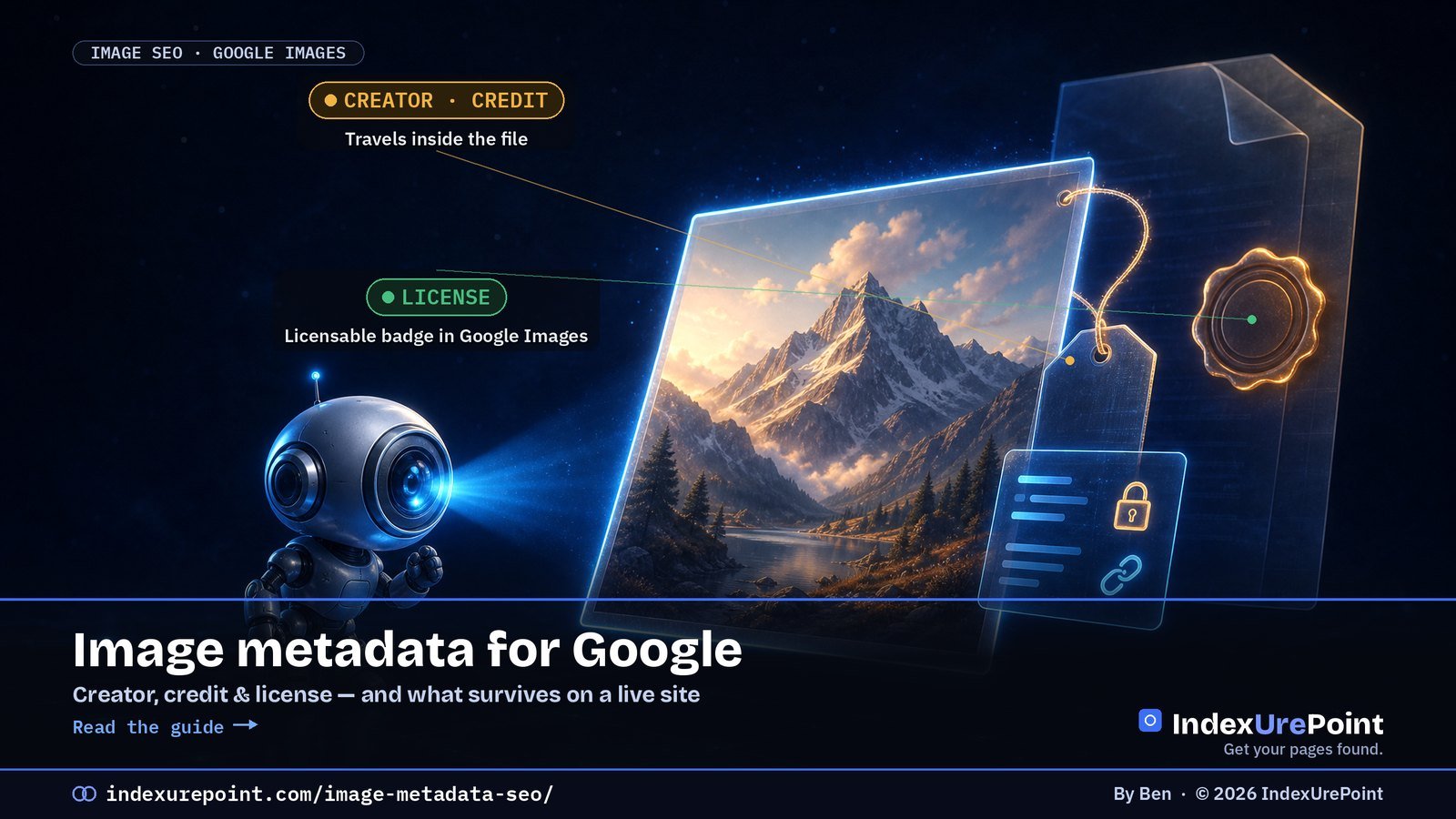
Google reads who made an image, who to credit and where its license lives from two places: IPTC photo metadata inside the file and ImageObject structured data on the page. Add a license URL and your images become eligible for the Licensable badge in Google Images. We added this to every image on this site, and learned that your host can quietly strip half of it.
- Google extracts six IPTC fields: Creator, Credit Line, Copyright Notice, Web Statement of Rights, Licensor URL and Digital Source Type (Google).
- For the Licensable badge you need a Web Statement of Rights (IPTC) or a
licenseproperty (structured data). If the two conflict, structured data wins. - Metadata doesn’t replace alt text: Google’s image guidelines still point to alt text, file names and page context to understand what an image shows.
- On our Hostinger site, the CDN re-encoded every image and kept only the rights fields: description, keywords and the AI-source label were dropped.
- Three days after we shipped it, Search Console listed 8 valid, 0 invalid items under Image metadata.
What image metadata does Google read?
How do you get the Licensable badge?
IPTC or structured data — which should you use?
What happened when we added it to 42 images
How do you check your own images?
What about AI-generated images?
Should you put your URL on the image itself?
FAQ
What image metadata does Google read?
Google uses image metadata to show who is behind an image and how it may be used, both in Google Images. It can read that information from the file itself (IPTC photo metadata, stored as IPTC or XMP) or from structured data on the page. These are the fields that count:
| What it says | IPTC field (in the file) | Structured data (on the page) |
|---|---|---|
| Who made it | Creator | creator |
| Who to credit | Credit Line | creditText |
| Who owns the copyright | Copyright Notice | copyrightNotice |
| Where the license is | Web Statement of Rights | license |
| Where to get a license | Licensor URL | acquireLicensePage |
| Whether AI was involved | Digital Source Type | — |
With structured data, the only required property is contentUrl, plus at least one of creator, creditText, copyrightNotice or license. Google uses contentUrl to match the metadata to the right image, so it has to be the actual image URL.
How do you get the Licensable badge?
The Licensable badge in Google Images links to your license and tells people how the image may be used. Google’s rule is short: with IPTC you must fill in the Web Statement of Rights, and with structured data you must include license. Both point to a page that explains the terms.
That page doesn’t have to be a paid licensing shop. Ours, Image use & credit, says our images are free to share with a credit link back to the source article. That’s a license too, and it turns every copied image into a potential backlink.
Google says to add the metadata to every place an image appears, even if it’s the same image on several pages. On WordPress that happens automatically if you add it through a site-wide schema filter, as we did.
IPTC or structured data — which should you use?
Use both if you can. They do different jobs:
- Structured data is what Google trusts first. The documentation says: if IPTC and structured data conflict, “Google will use the structured data information.” It also lives on your page, so nobody can strip it.
- IPTC metadata travels with the file. When someone downloads your image and uploads it elsewhere, the creator and license URL can go with it — if nothing strips them on the way.
On WordPress with Yoast SEO, the article’s main image is already output as an ImageObject. We added creator, creditText, copyrightNotice, license and acquireLicensePage to it with a small filter on Yoast’s schema graph, so every existing and future image gets the same fields.
What happened when we added it to 42 images
On 26 September 2026 we rebuilt the hero image of every article on this site: a visible footer with the article’s own URL, the author and the year, plus metadata written with ExifTool into IPTC, XMP and EXIF. Then we downloaded the live files the way a browser gets them. Our host serves images through a CDN that re-encodes them, often as WebP, and that re-encoding decided what survived.
| Field we wrote | Still in the live file? |
|---|---|
| Creator (XMP + IPTC By-line) | Yes |
| Copyright / Rights text (incl. article URL) | Yes |
| Web Statement of Rights (license URL) | Yes |
| IPTC Credit Line and Copyright Notice | Yes, in the JPEG |
| EXIF Artist and Copyright | Yes, also in the WebP |
| Description, headline, keywords | No |
| Licensor URL | No |
| Digital Source Type (AI label) | No |
In other words, the optimizer kept exactly the rights information and threw away the rest. That’s good enough for crediting, but it means you can’t rely on the file alone for descriptions or keywords. Those belong in the alt text, the caption and the page itself.
Two smaller lessons. First, the © sign got garbled in the IPTC Copyright Notice after re-encoding, so we now write “Copyright 2026 IndexUrePoint” there and keep the © only in XMP. Second, IPTC fields have hard length limits: Credit Line and Source allow just 32 characters, so “IndexUrePoint.com” fits and a full URL doesn’t.
How do you check your own images?
Don’t trust the file on your computer; check the file your visitors and Googlebot receive. With ExifTool installed:
curl -s -o live.jpg https://example.com/wp-content/uploads/image.jpg
curl -s -o live.webp -H "Accept: image/webp" https://example.com/wp-content/uploads/image.jpg
exiftool -G1 -s -Creator -Rights -WebStatement -Credit -CopyrightNotice live.jpg live.webp
The second line asks for WebP, like Chrome does, which is often where metadata disappears. Then:
- Test the page in Google’s Rich Results Test to confirm the
ImageObjecthaslicenseandcontentUrl. - In Search Console, look under Enhancements for an Image metadata report. On our site it appeared within days of adding the metadata. You’ll need your pages crawled first, so check they’re indexed.
What about AI-generated images?
Google reads the IPTC Digital Source Type field and supports four values for AI involvement, including trainedAlgorithmicMedia (made by a generative model) and compositeWithTrainedAlgorithmicMedia (a composite that includes AI-generated material). The base artwork of our illustrations comes from an AI image model and every word and number on them is added by us, so we label them as composites.
Our host stripped that field, though. So we also say it in plain words on our image use page. If labelling AI images honestly matters to you, don’t rely on the file field alone.
Should you put your URL on the image itself?
Metadata is invisible and fragile; pixels aren’t. Screenshots, social platforms and AI tools routinely drop metadata, but a small footer with your domain and the article’s URL survives all of them. That’s why every image here now carries its own address at the bottom.
Image-led searches are growing enough that Google now reports them separately: Search Console’s new multimodal filter shows traffic from Lens and Circle to Search.
Keep it modest: a thin strip, not a watermark across the subject. Google’s image guidelines favor relevant, high-quality images, and a logo splashed over the content does the opposite. For social sharing, make a separate 1200×630 version so platforms don’t crop your footer off.
Image metadata won’t make a page rank, and Google doesn’t claim it does. What it does is make sure that when your image travels — through Google Images, Lens or someone’s blog post — your name and a link back travel with it. For a small site, that’s one of the cheapest sources of credit and links there is.
FAQ
Does Google use IPTC metadata?
Yes. Google extracts Creator, Credit Line, Copyright Notice, Web Statement of Rights, Licensor URL and Digital Source Type from IPTC photo metadata and can show them in Google Images.
What is required for the Licensable badge in Google Images?
With IPTC metadata you must include the Web Statement of Rights field. With structured data you must include the license property on the ImageObject, together with contentUrl.
What if IPTC metadata and structured data disagree?
Google uses the structured data information when the two conflict.
Does image metadata improve rankings?
Google doesn’t describe it as a ranking factor. It is used to credit the creator and show license information in Google Images. Alt text, file names and the surrounding page content remain what helps Google understand an image.
Why is my image metadata missing on my live site?
Image optimizers, CDNs and WebP conversion often re-encode images and drop metadata. Download the live file, including the WebP version, and read it with ExifTool to see what actually survives.